> ## Documentation Index
> Fetch the complete documentation index at: https://docs.pockla.io/llms.txt
> Use this file to discover all available pages before exploring further.
# Adding Email to Boards
> View email history and draft messages from your boards
The Emails panel in Boards lets you see email history with contacts and draft new messages—all without leaving Pockla.
## How It Works
Email in Boards is powered by the [Gmail Integration](/integrations/gmail/overview). Once connected:
1. **View history** – See all emails exchanged with the contact's company domain
2. **Create drafts** – Write new emails or replies
3. **AI assistance** – Let the Board Agent draft contextual emails for you
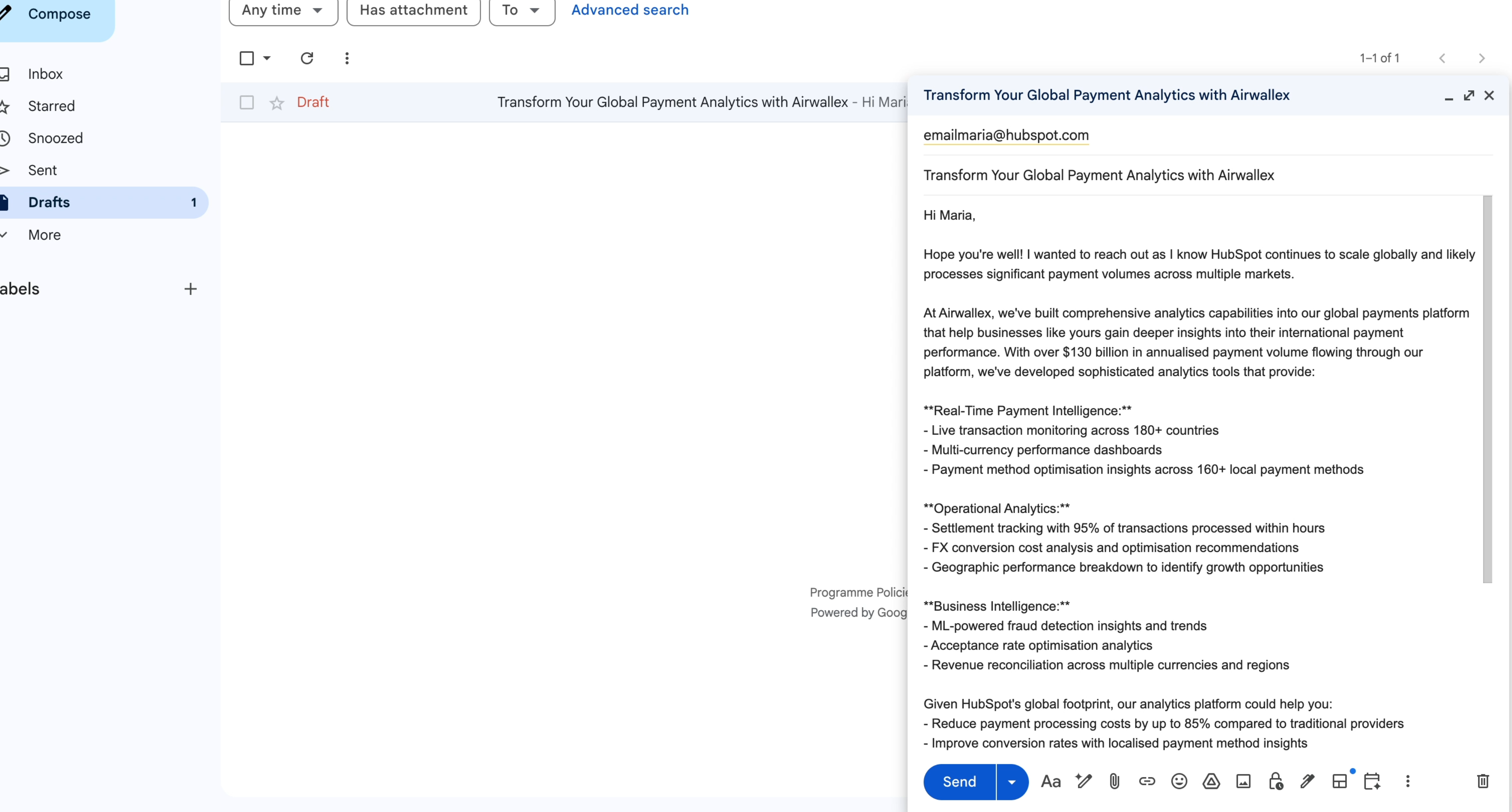
Emails are created as drafts in your Gmail. You review and send from Gmail—Pockla doesn't send emails directly.
## Setting Up Email
### Connect Gmail
Navigate to **Boards** and open any board
Click on a contact card to open the detail view
Click the **Emails** tab in the panel area
Click **Connect Gmail** and authorize with your Google account
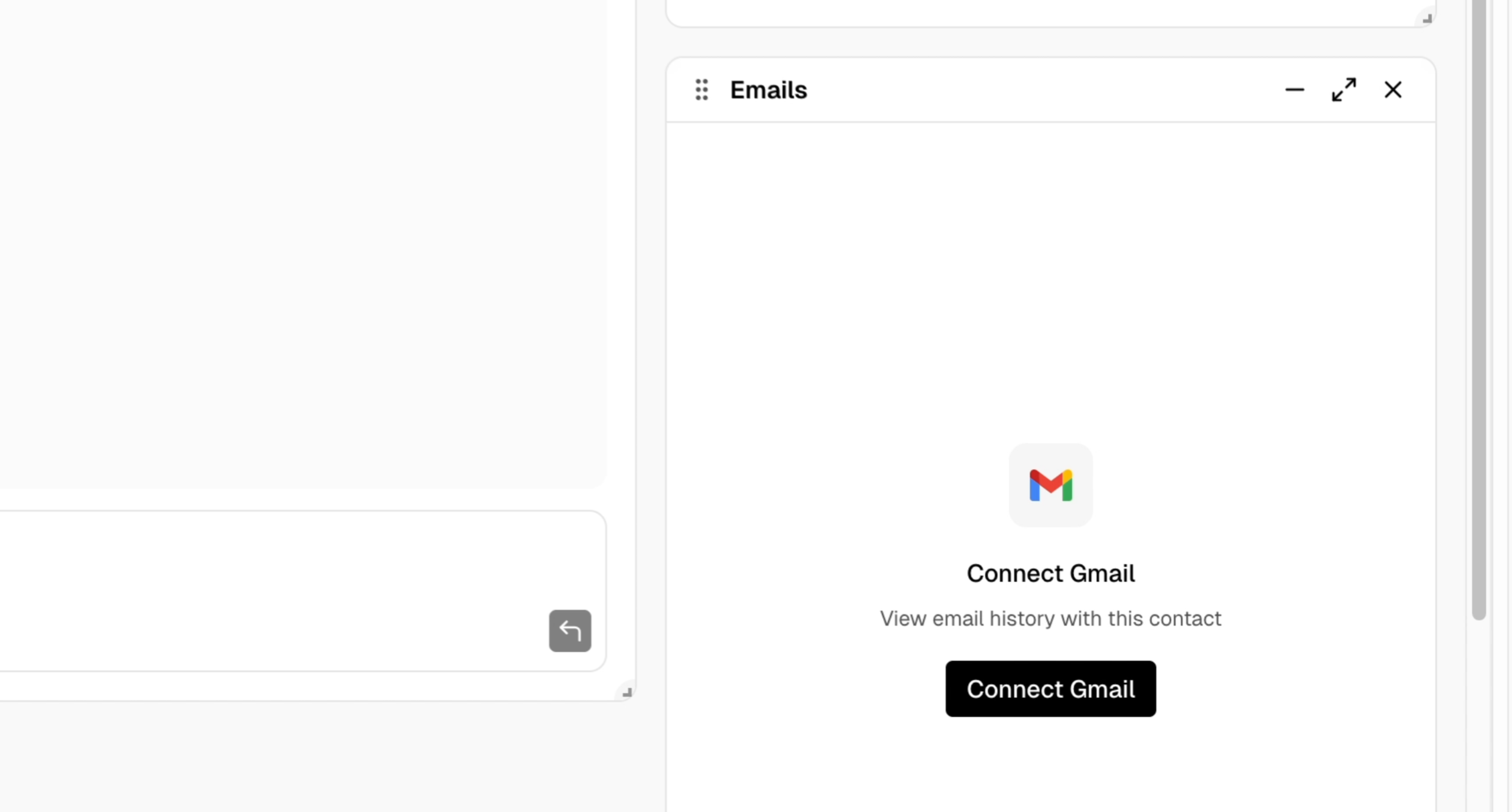 Once connected, the Emails panel shows your email history with that contact's company.
## Using the Emails Panel
### Viewing Emails
The panel shows all emails exchanged with the contact's **company domain**. For a contact at `john@acme.com`, you'll see all your emails to/from `@acme.com`.
Each email shows:
* Direction (sent or received)
* Date
* Subject line
* Preview snippet
Once connected, the Emails panel shows your email history with that contact's company.
## Using the Emails Panel
### Viewing Emails
The panel shows all emails exchanged with the contact's **company domain**. For a contact at `john@acme.com`, you'll see all your emails to/from `@acme.com`.
Each email shows:
* Direction (sent or received)
* Date
* Subject line
* Preview snippet
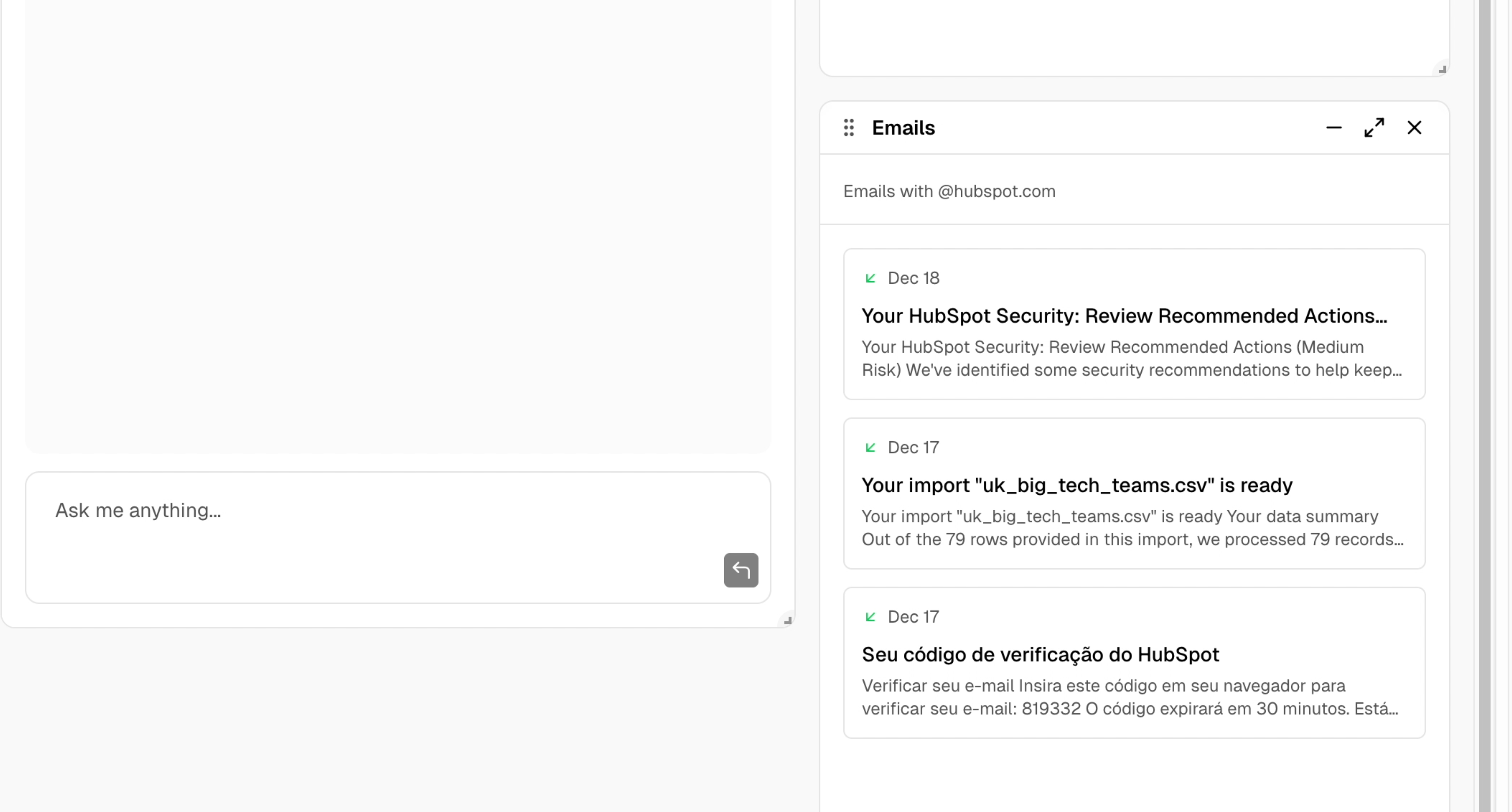 Click an email to see the full content.
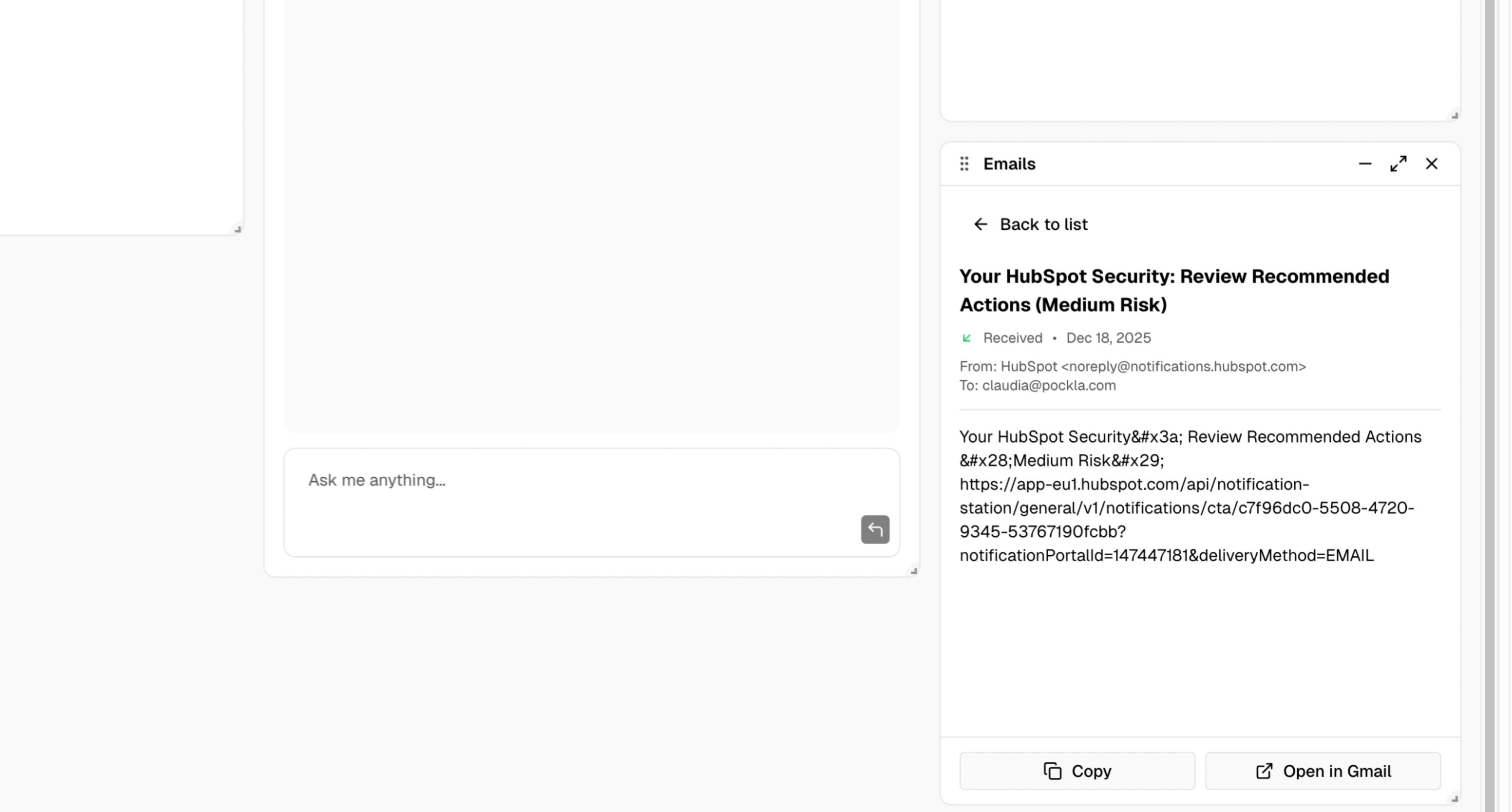 ### Email Actions
| Action | Description |
| ----------------- | ---------------------------- |
| **Copy** | Copy email body to clipboard |
| **Open in Gmail** | View/edit the email in Gmail |
## Creating Emails with the Board Agent
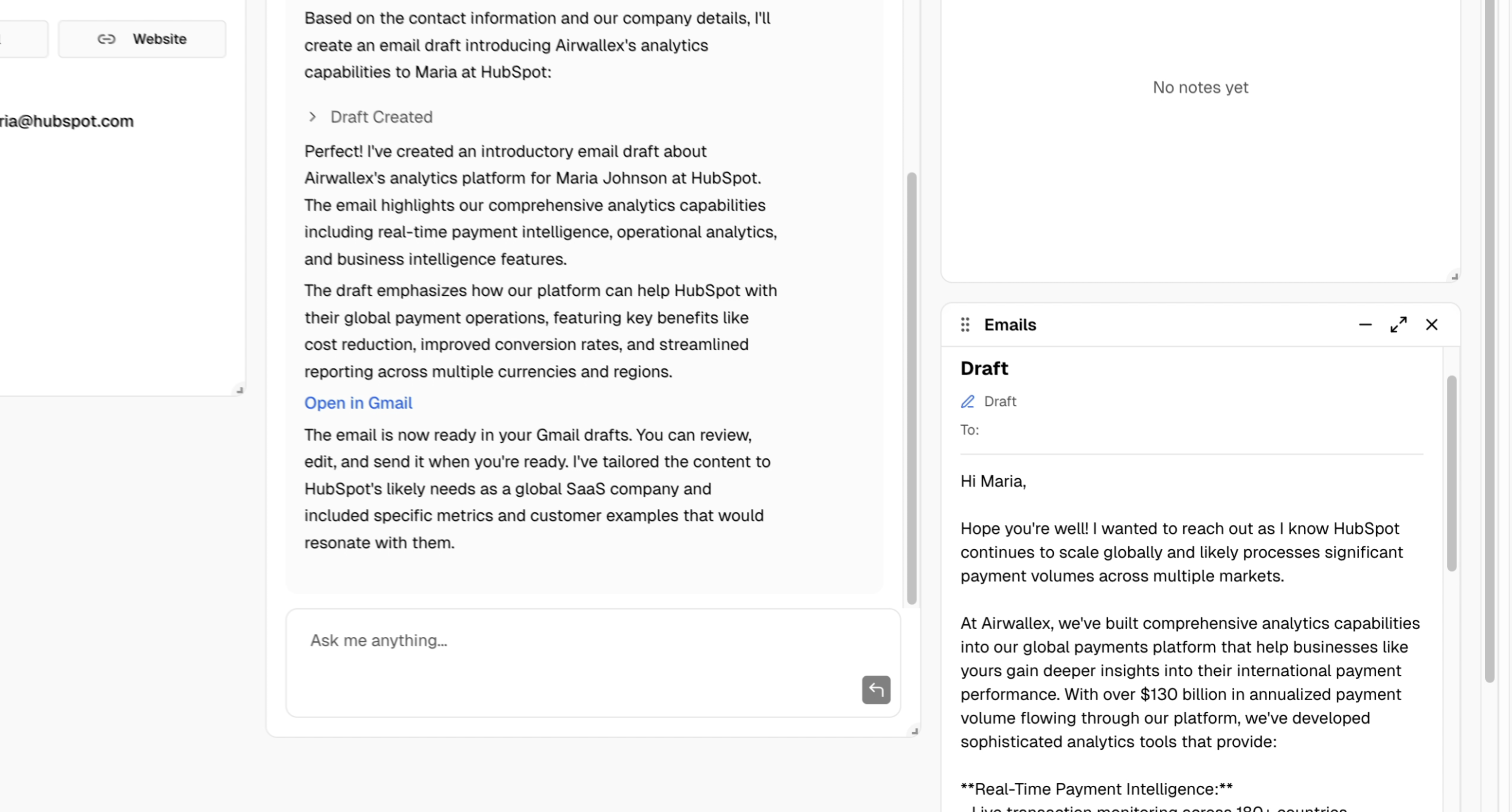
The Board Agent can draft emails using contact context, company research, and email history.
### Draft a New Email
Ask the agent:
> "Draft an introductory email to John about our analytics platform"
> "Write a follow-up email mentioning our conversation about their Q2 goals"
### Email Actions
| Action | Description |
| ----------------- | ---------------------------- |
| **Copy** | Copy email body to clipboard |
| **Open in Gmail** | View/edit the email in Gmail |
## Creating Emails with the Board Agent
The Board Agent can draft emails using contact context, company research, and email history.
### Draft a New Email
Ask the agent:
> "Draft an introductory email to John about our analytics platform"
> "Write a follow-up email mentioning our conversation about their Q2 goals"
 ### Reply to a Thread
Ask the agent to reply to existing conversations:
> "Reply to the latest email thread about pricing"
> "Draft a response to their question about integrations"
### How It Works
1. Agent creates a draft in your Gmail
2. Draft appears in the Emails panel
3. Click to open in Gmail
4. Review, edit if needed, and send
### Reply to a Thread
Ask the agent to reply to existing conversations:
> "Reply to the latest email thread about pricing"
> "Draft a response to their question about integrations"
### How It Works
1. Agent creates a draft in your Gmail
2. Draft appears in the Emails panel
3. Click to open in Gmail
4. Review, edit if needed, and send
 The more data you have on the contact (enrichments, notes, email history), the better the agent's drafts will be.
## Best Practices
Review the Emails panel before drafting. The agent can reference past conversations, but you should know the context too.
Always review agent-drafted emails before sending. The AI provides a starting point—add your personal touch.
Email from Boards works best for contacts you have context on. For cold outreach at scale, use [Link Sets](/links/introduction).
## Troubleshooting
* Ensure the contact has an email address with a company domain
* Personal emails (gmail.com, outlook.com) won't match company emails
* Check that Gmail is connected (may need to reconnect if token expired)
* Ensure popups aren't blocked
* Try a different browser
* Check that you're signing in with the correct Google account
* Drafts may take a few seconds to sync
* Check your Gmail Drafts folder directly
* Ensure you authorized compose permissions
## Next Steps
Full Gmail integration documentation
The more data you have on the contact (enrichments, notes, email history), the better the agent's drafts will be.
## Best Practices
Review the Emails panel before drafting. The agent can reference past conversations, but you should know the context too.
Always review agent-drafted emails before sending. The AI provides a starting point—add your personal touch.
Email from Boards works best for contacts you have context on. For cold outreach at scale, use [Link Sets](/links/introduction).
## Troubleshooting
* Ensure the contact has an email address with a company domain
* Personal emails (gmail.com, outlook.com) won't match company emails
* Check that Gmail is connected (may need to reconnect if token expired)
* Ensure popups aren't blocked
* Try a different browser
* Check that you're signing in with the correct Google account
* Drafts may take a few seconds to sync
* Check your Gmail Drafts folder directly
* Ensure you authorized compose permissions
## Next Steps
Full Gmail integration documentation