> ## Documentation Index
> Fetch the complete documentation index at: https://docs.pockla.io/llms.txt
> Use this file to discover all available pages before exploring further.
# Boards Introduction
> Individual contact workspaces with customizable panels
Boards in Pockla are **individual contact workspaces**—a dedicated view for each contact where you can see their profile, take notes, chat with AI, run research, and manage all your interactions in one place.
## What Is a Board?
Each contact in Pockla has their own board. Think of it as a CRM record on steroids:
* **Draggable, resizable panels** arranged in a grid layout
* **Profile information** at a glance
* **Notes** for tracking interactions
* **AI Chat** for asking questions about the contact
* **Enrichment panels** showing AI-generated research
* **Email** integration for viewing and sending messages
Your panel layout is saved automatically—arrange panels however works best for you.
## Accessing a Board
There are several ways to open a contact's board:
1. **From Contacts**: Click a contact row, then click "View Board" from the actions menu
2. **After creating a contact**: When you add a contact from anywhere except the contacts page, you're taken directly to their board
3. **Direct URL**: Navigate to `/board/{contactId}`
## Default Panels
Every board starts with these core panels:
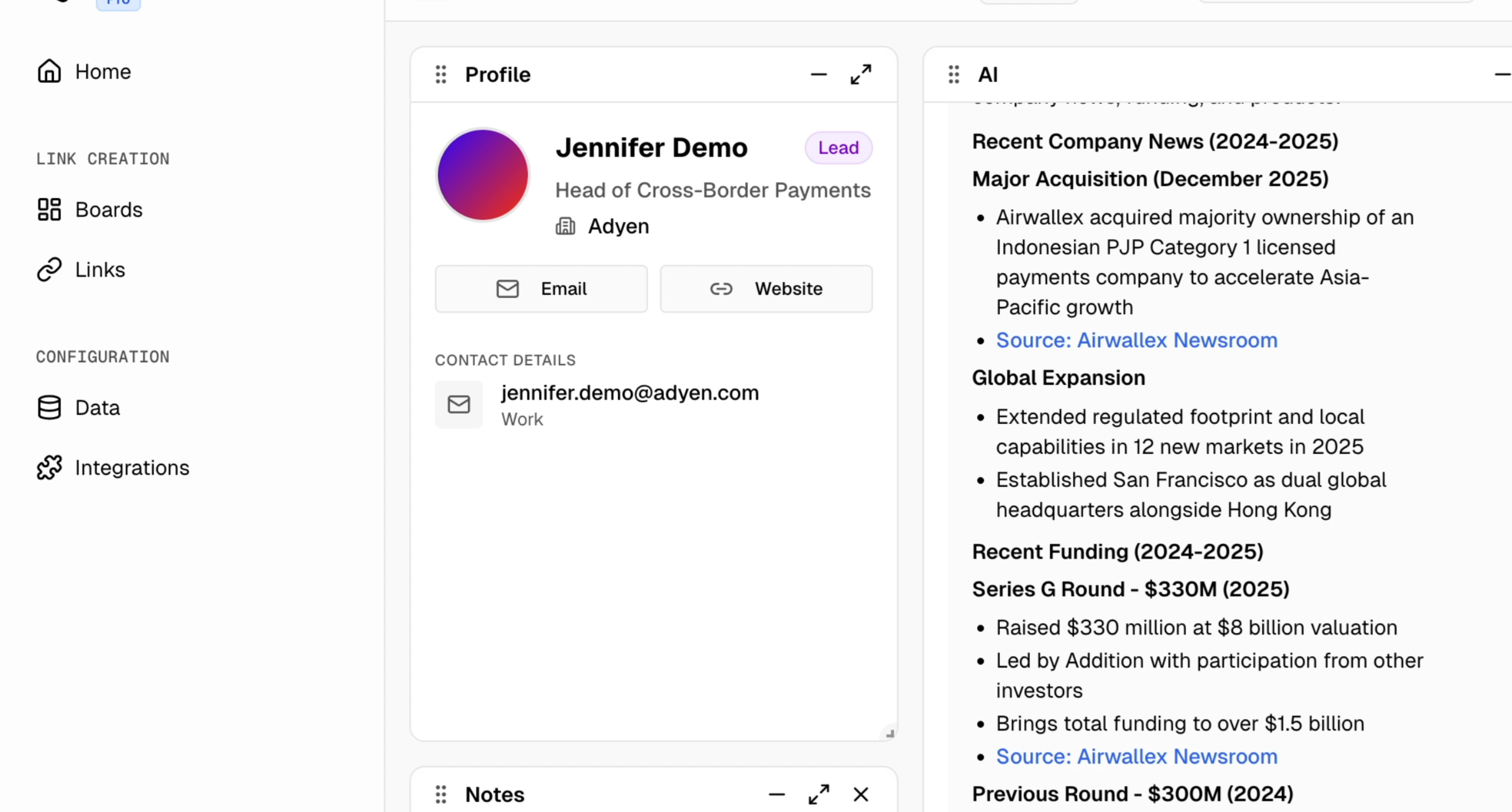
### Profile Panel
Shows essential contact information at a glance:
* **Avatar** (generated from email)
* **Name and title**
* **Company**
* **Status badge** (Lead, Prospect, Customer, Churned)
* **Quick actions**: Email button, Website link
* **Contact details**: Email, phone
 ### AI Chat Panel
Chat with an AI assistant that knows about this contact. Ask questions, get suggestions for outreach, or brainstorm talking points.
The chat history is saved per-contact, so you can continue conversations across sessions.
### Notes Panel
Keep track of your interactions:
* **Add notes** with title and rich text content
* **View all notes** in a list format
* **Click to expand** any note to see full details
* **Edit notes** inline
* **Copy content** with one click
Notes support Markdown formatting and are timestamped automatically.
## Adding Panels
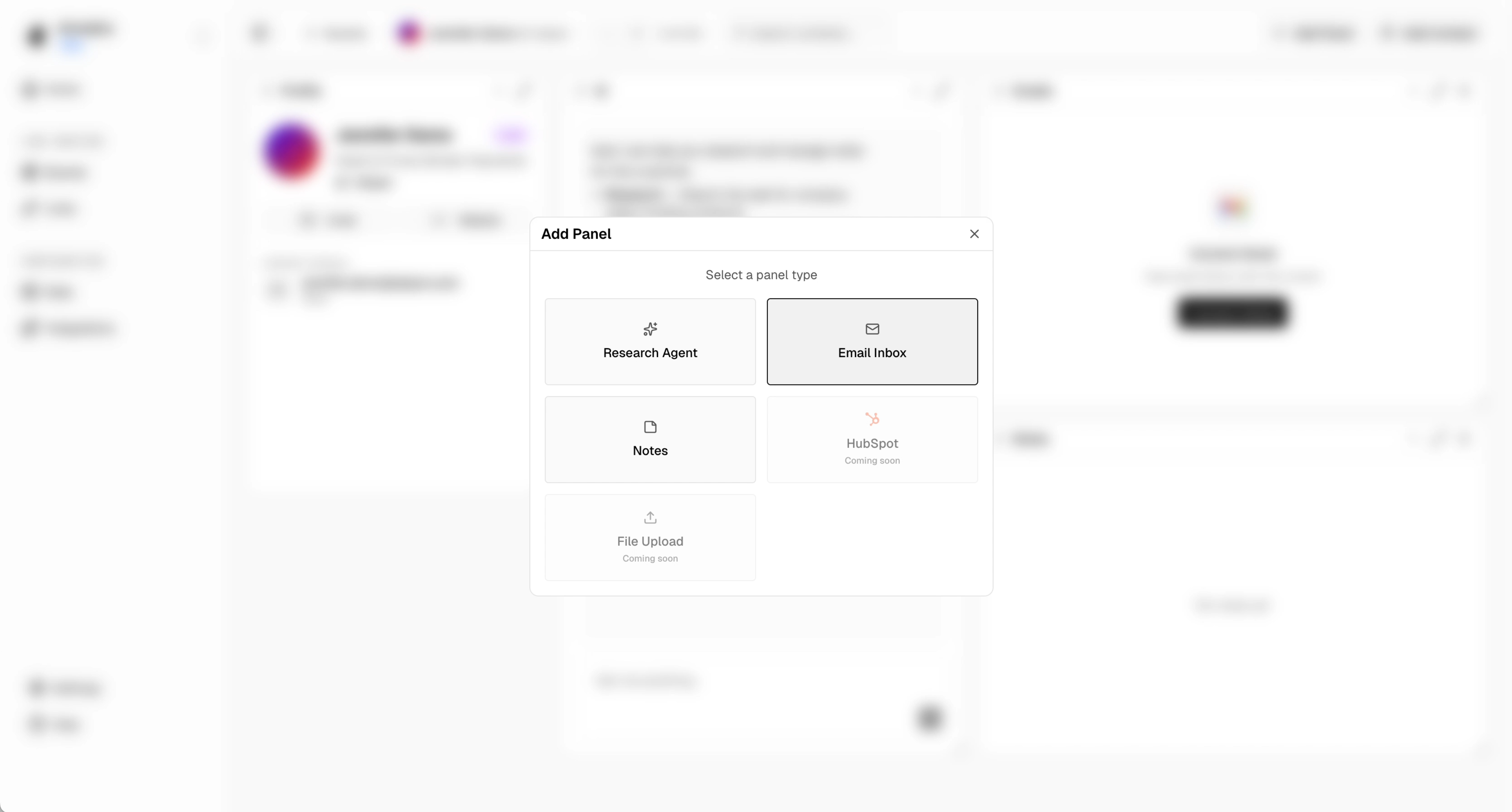
Click the **"+ Add Panel"** button in the board header to add more panels.
### AI Chat Panel
Chat with an AI assistant that knows about this contact. Ask questions, get suggestions for outreach, or brainstorm talking points.
The chat history is saved per-contact, so you can continue conversations across sessions.
### Notes Panel
Keep track of your interactions:
* **Add notes** with title and rich text content
* **View all notes** in a list format
* **Click to expand** any note to see full details
* **Edit notes** inline
* **Copy content** with one click
Notes support Markdown formatting and are timestamped automatically.
## Adding Panels
Click the **"+ Add Panel"** button in the board header to add more panels.
 ### Available Panel Types
| Panel Type | Description |
| -------------- | ------------------------------------------------ |
| **Profile** | Contact information (included by default) |
| **Notes** | Meeting notes, call logs, interaction history |
| **Emails** | Email history and compose (requires email setup) |
| **AI Chat** | Conversational AI assistant for this contact |
| **Enrichment** | AI-powered research panels (custom objectives) |
### Creating an Enrichment Panel
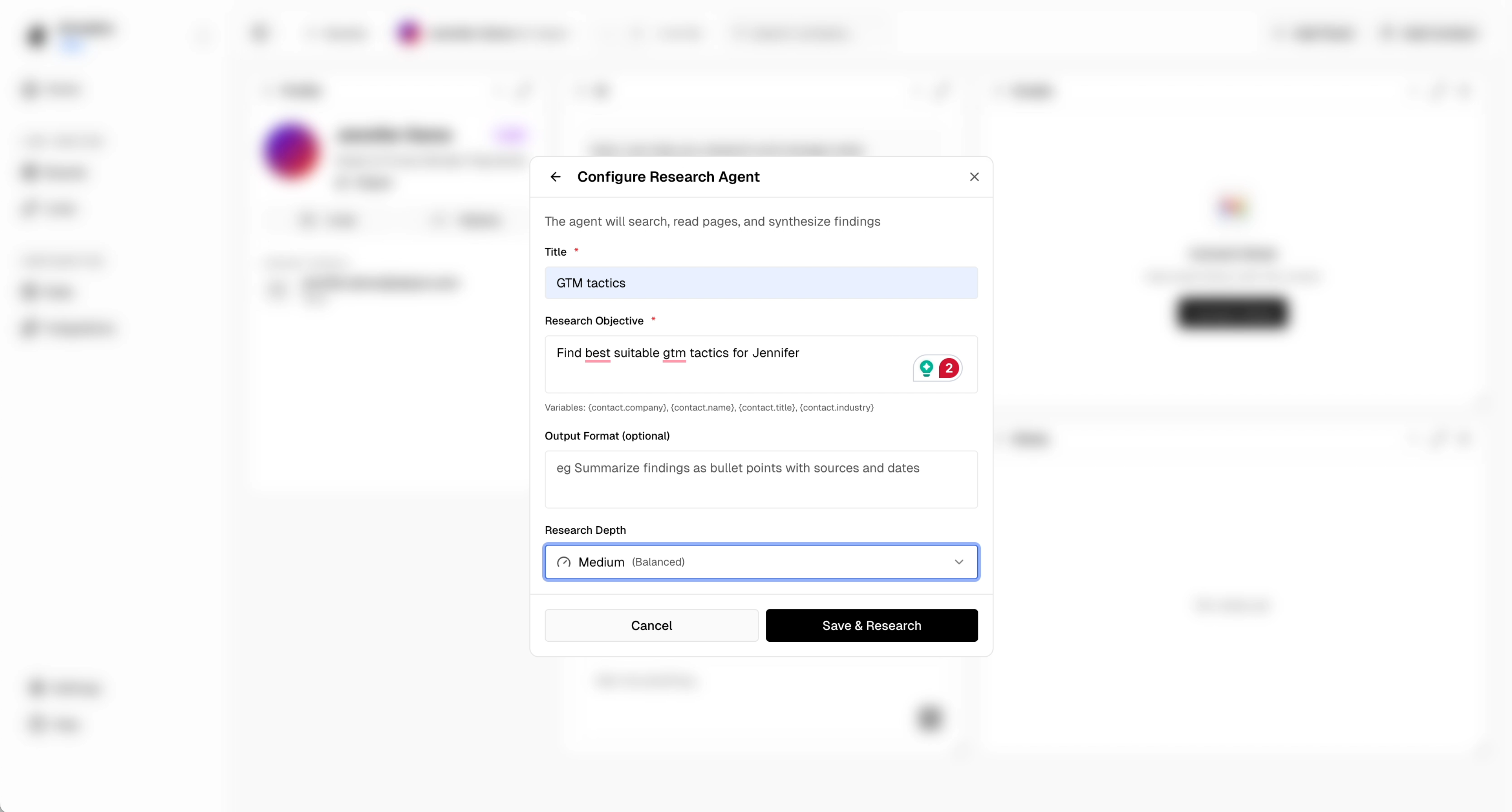
Enrichment panels are powered by the [Research Agent](/data/research-agent). When adding one:
1. Click **"+ Add Panel"**
2. Select **"New Research"**
3. Configure the research:
* **Title**: What to call this panel (e.g., "Funding News")
* **Objective**: What you want to learn (e.g., "Find recent funding announcements for {company}")
* **Output format**: How to structure results (e.g., "Bullet points with sources")
* **Iterations**: How deep to research (1-10)
4. Click **Create**
### Available Panel Types
| Panel Type | Description |
| -------------- | ------------------------------------------------ |
| **Profile** | Contact information (included by default) |
| **Notes** | Meeting notes, call logs, interaction history |
| **Emails** | Email history and compose (requires email setup) |
| **AI Chat** | Conversational AI assistant for this contact |
| **Enrichment** | AI-powered research panels (custom objectives) |
### Creating an Enrichment Panel
Enrichment panels are powered by the [Research Agent](/data/research-agent). When adding one:
1. Click **"+ Add Panel"**
2. Select **"New Research"**
3. Configure the research:
* **Title**: What to call this panel (e.g., "Funding News")
* **Objective**: What you want to learn (e.g., "Find recent funding announcements for {company}")
* **Output format**: How to structure results (e.g., "Bullet points with sources")
* **Iterations**: How deep to research (1-10)
4. Click **Create**
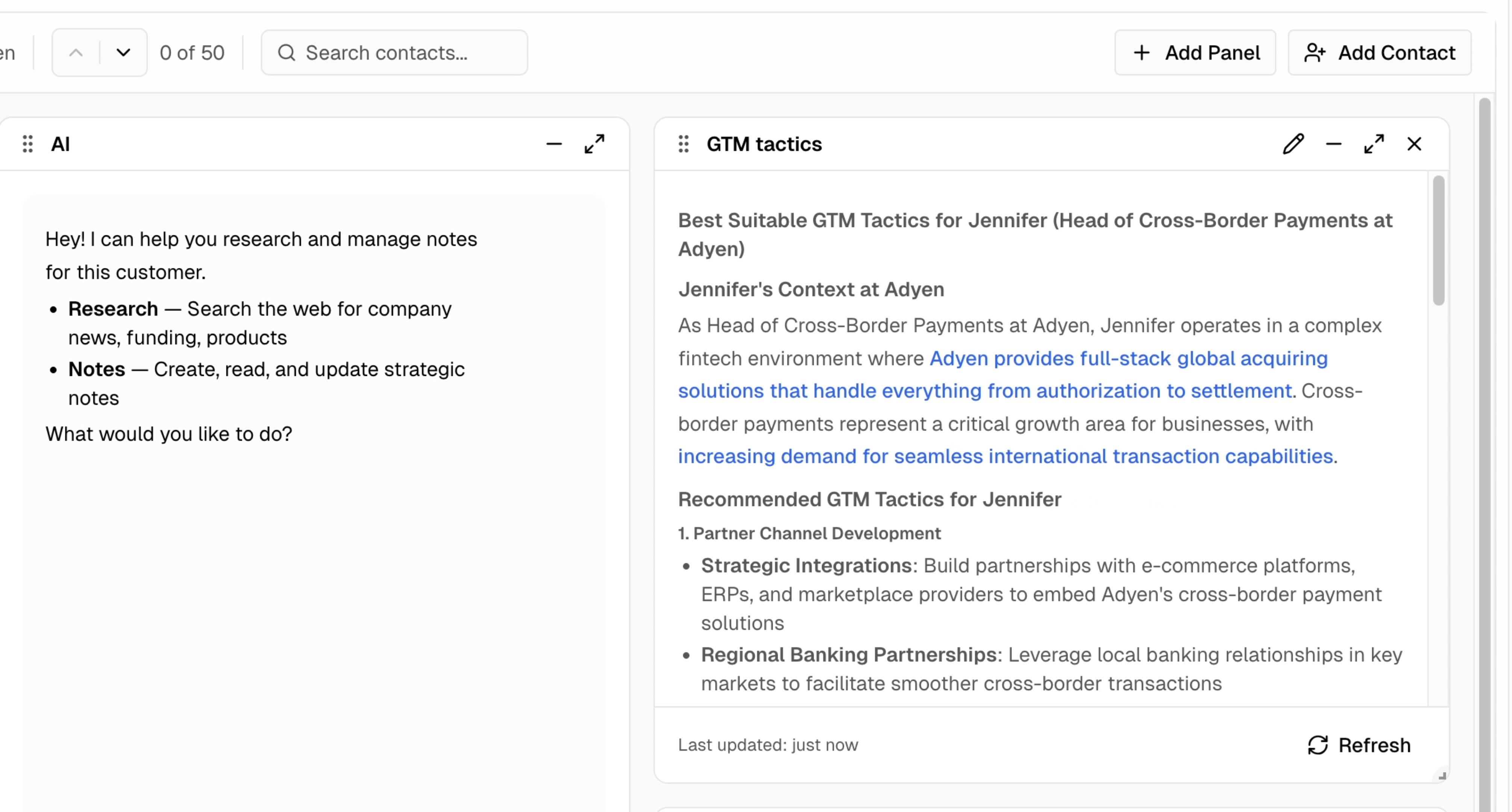
 The new panel appears on your board and automatically runs the research.
 ## Panel Interactions
### Drag & Drop
Rearrange panels by dragging their header bar:
* Panels snap to a 12-column grid
* Other panels automatically move to make room
* Layout saves automatically
### Resize
Drag panel edges or corners to resize:
* Minimum size is enforced per panel type
* Grid-based sizing ensures clean layouts
### Minimize / Maximize
Use the panel header controls:
* **Minimize** (−): Collapse to just the header bar
* **Maximize** (⤢): Expand to fill the board
* **Close** (×): Remove the panel from your board
### Edit Enrichment Panels
For enrichment/research panels:
1. Click the **pencil icon** in the panel header
2. Modify the research configuration
3. Choose to **Save** or **Save & Re-run**
Re-running regenerates the research with new parameters.
## Panel Types in Detail
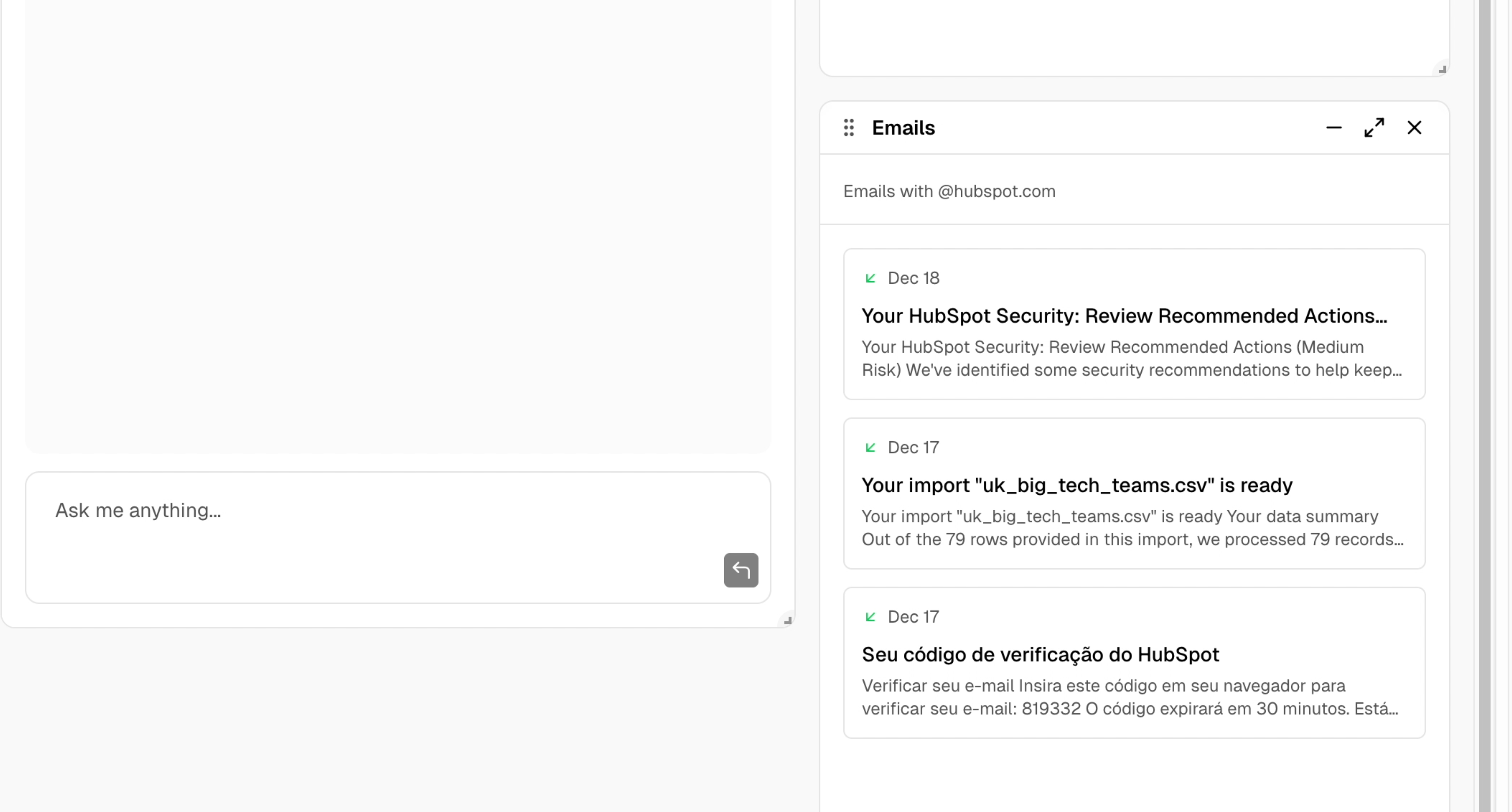
### Emails Panel
Requires [email integration](/boards/adding-email) to be configured.
View email history with this contact:
* See sent and received emails
* Compose new emails directly
* Track opens and clicks
## Panel Interactions
### Drag & Drop
Rearrange panels by dragging their header bar:
* Panels snap to a 12-column grid
* Other panels automatically move to make room
* Layout saves automatically
### Resize
Drag panel edges or corners to resize:
* Minimum size is enforced per panel type
* Grid-based sizing ensures clean layouts
### Minimize / Maximize
Use the panel header controls:
* **Minimize** (−): Collapse to just the header bar
* **Maximize** (⤢): Expand to fill the board
* **Close** (×): Remove the panel from your board
### Edit Enrichment Panels
For enrichment/research panels:
1. Click the **pencil icon** in the panel header
2. Modify the research configuration
3. Choose to **Save** or **Save & Re-run**
Re-running regenerates the research with new parameters.
## Panel Types in Detail
### Emails Panel
Requires [email integration](/boards/adding-email) to be configured.
View email history with this contact:
* See sent and received emails
* Compose new emails directly
* Track opens and clicks
 ### Enrichment Panel
Shows AI-generated research about the contact or their company:
| Status | Display |
| -------------- | ---------------------------------------------- |
| **Pending** | "Pending" badge |
| **Generating** | Spinner animation |
| **Completed** | Full research content with Markdown formatting |
| **Failed** | Error message with retry option |
Click the **refresh icon** to re-run research at any time.
## Board Architecture
Under the hood, boards use:
* **react-grid-layout**: For the draggable/resizable grid
* **Per-user layouts**: Your arrangement is saved and synced
* **Per-contact data**: Notes, chat history, and enrichments are stored per contact
* **Real-time updates**: Changes sync across tabs/devices
## Tips & Best Practices
Put frequently-used panels at the top left. Consider a layout like:
* **Top row**: Profile (narrow) + AI Chat (wide)
* **Middle row**: Research panels
* **Bottom row**: Notes + Emails
Create different enrichment panels for different research needs:
* "Recent News" for keeping up with company updates
* "Talking Points" for personalized outreach ideas
* "Competitor Analysis" for sales intelligence
Build a history of your relationship with each contact. Future you (and teammates) will thank you.
## Next Steps
Send emails directly from boards
Configure AI-powered research
Auto-populate contact data
### Enrichment Panel
Shows AI-generated research about the contact or their company:
| Status | Display |
| -------------- | ---------------------------------------------- |
| **Pending** | "Pending" badge |
| **Generating** | Spinner animation |
| **Completed** | Full research content with Markdown formatting |
| **Failed** | Error message with retry option |
Click the **refresh icon** to re-run research at any time.
## Board Architecture
Under the hood, boards use:
* **react-grid-layout**: For the draggable/resizable grid
* **Per-user layouts**: Your arrangement is saved and synced
* **Per-contact data**: Notes, chat history, and enrichments are stored per contact
* **Real-time updates**: Changes sync across tabs/devices
## Tips & Best Practices
Put frequently-used panels at the top left. Consider a layout like:
* **Top row**: Profile (narrow) + AI Chat (wide)
* **Middle row**: Research panels
* **Bottom row**: Notes + Emails
Create different enrichment panels for different research needs:
* "Recent News" for keeping up with company updates
* "Talking Points" for personalized outreach ideas
* "Competitor Analysis" for sales intelligence
Build a history of your relationship with each contact. Future you (and teammates) will thank you.
## Next Steps
Send emails directly from boards
Configure AI-powered research
Auto-populate contact data