> ## Documentation Index
> Fetch the complete documentation index at: https://docs.pockla.io/llms.txt
> Use this file to discover all available pages before exploring further.
# Columns & Custom Fields
> Customize your contacts table with custom columns
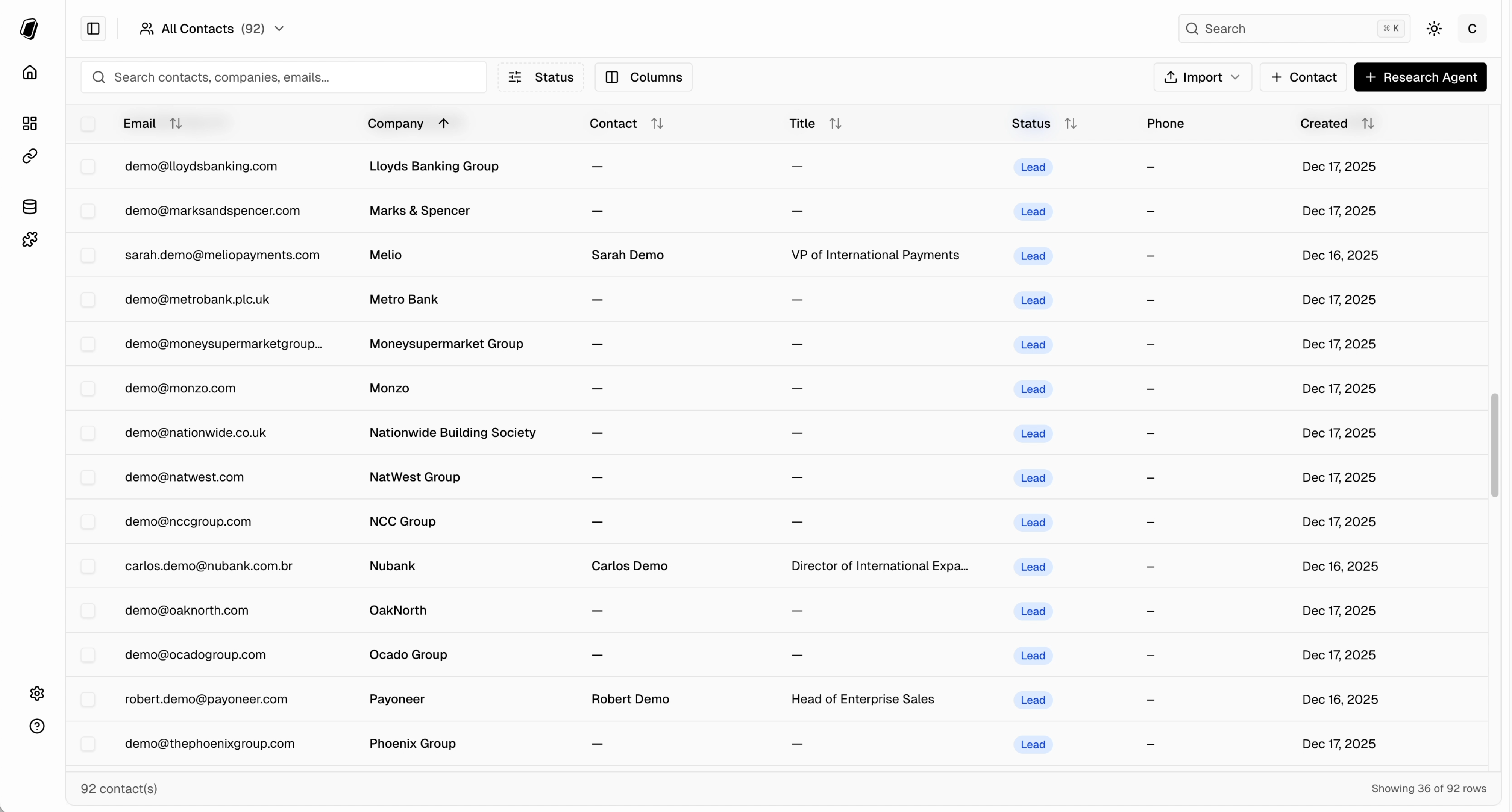
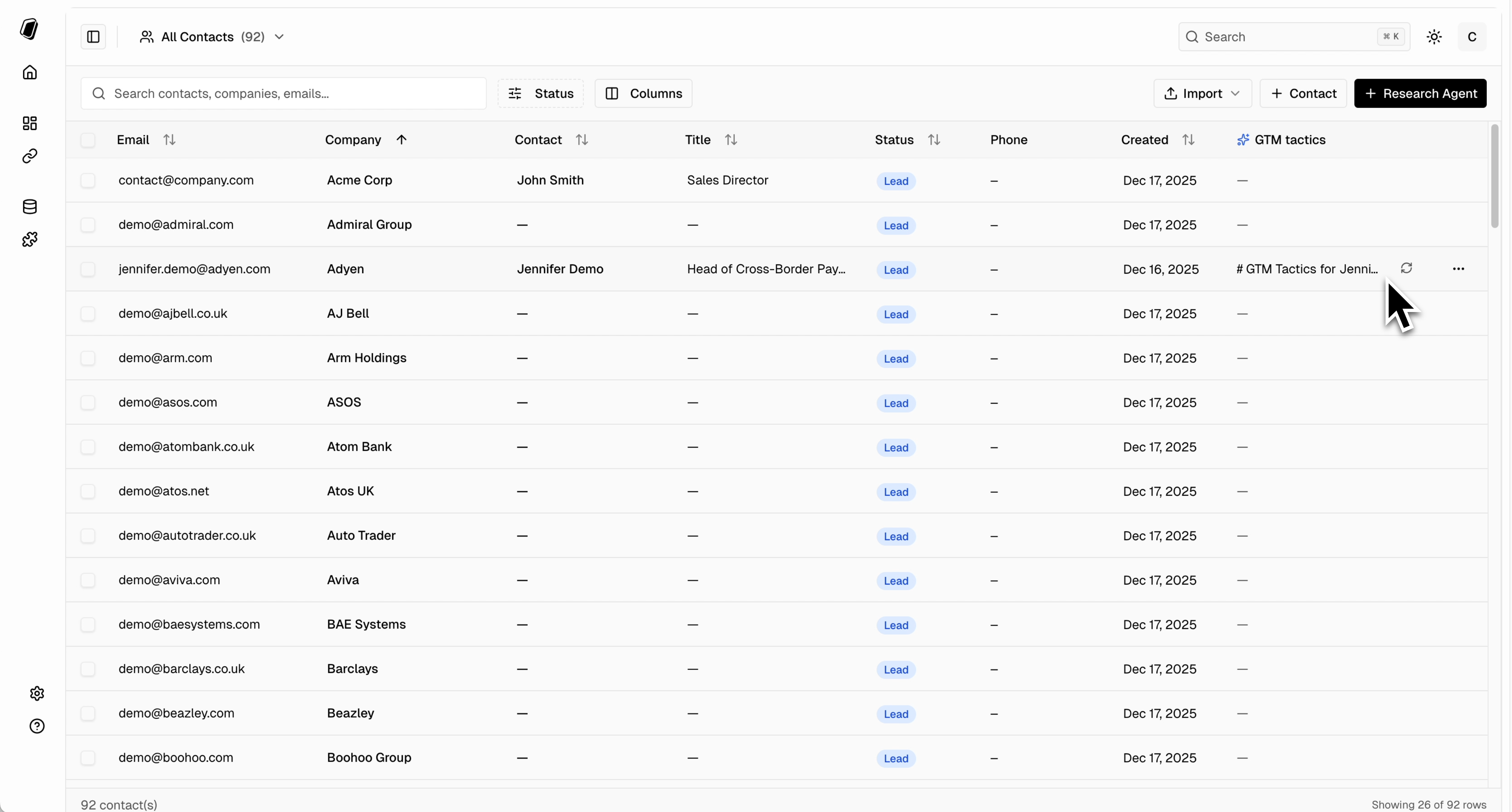
Customize your contacts table by adding, removing, and configuring columns to match your workflow.
 ## Managing Columns
### Viewing Column Options
1. Navigate to **Contacts**
2. Click the **Columns** button (or column settings icon)
3. View available columns
### Showing/Hiding Columns
Toggle columns on or off to customize your view:
* Check/uncheck columns in the column picker
* Changes apply to your view
## Column Types
| Type | Description | Example Values |
| ------------ | -------------------------- | ------------------------------------------- |
| Text | Single line of text | "Enterprise", "Hot Lead" |
| Long Text | Multi-line text | Notes, descriptions |
| Number | Numeric values | 1000, 50.5 |
| Date | Date picker | 2024-01-15 |
| Dropdown | Single select from options | "Active", "Inactive" |
| Multi-select | Multiple selections | Tags, categories |
| Checkbox | Boolean true/false | ✓ / ✗ |
| URL | Clickable link | [https://example.com](https://example.com) |
| Email | Email address | [user@example.com](mailto:user@example.com) |
## Special Columns
### Enrichment Columns
Some columns are automatically populated by [data enrichment](/data/enriching-data):
* Company Domain
* LinkedIn URL
* Industry
* Company Size
## Managing Columns
### Viewing Column Options
1. Navigate to **Contacts**
2. Click the **Columns** button (or column settings icon)
3. View available columns
### Showing/Hiding Columns
Toggle columns on or off to customize your view:
* Check/uncheck columns in the column picker
* Changes apply to your view
## Column Types
| Type | Description | Example Values |
| ------------ | -------------------------- | ------------------------------------------- |
| Text | Single line of text | "Enterprise", "Hot Lead" |
| Long Text | Multi-line text | Notes, descriptions |
| Number | Numeric values | 1000, 50.5 |
| Date | Date picker | 2024-01-15 |
| Dropdown | Single select from options | "Active", "Inactive" |
| Multi-select | Multiple selections | Tags, categories |
| Checkbox | Boolean true/false | ✓ / ✗ |
| URL | Clickable link | [https://example.com](https://example.com) |
| Email | Email address | [user@example.com](mailto:user@example.com) |
## Special Columns
### Enrichment Columns
Some columns are automatically populated by [data enrichment](/data/enriching-data):
* Company Domain
* LinkedIn URL
* Industry
* Company Size
 ## Column Best Practices
* Use clear, descriptive names
* Avoid abbreviations
* Consider future filtering needs
* Use dropdowns for controlled values
* Use text for free-form data
* Consider reporting needs when choosing types
## Deleting Columns
Deleting a column removes all data in that column across all contacts. This action cannot be undone.
## Next Steps
Auto-populate columns with AI enrichment
Filter and segment using your custom columns
## Column Best Practices
* Use clear, descriptive names
* Avoid abbreviations
* Consider future filtering needs
* Use dropdowns for controlled values
* Use text for free-form data
* Consider reporting needs when choosing types
## Deleting Columns
Deleting a column removes all data in that column across all contacts. This action cannot be undone.
## Next Steps
Auto-populate columns with AI enrichment
Filter and segment using your custom columns