> ## Documentation Index
> Fetch the complete documentation index at: https://docs.pockla.io/llms.txt
> Use this file to discover all available pages before exploring further.
# Lists
> Organize and segment your contacts with lists
Lists help you organize contacts into groups for targeted outreach, segmentation, and campaigns.
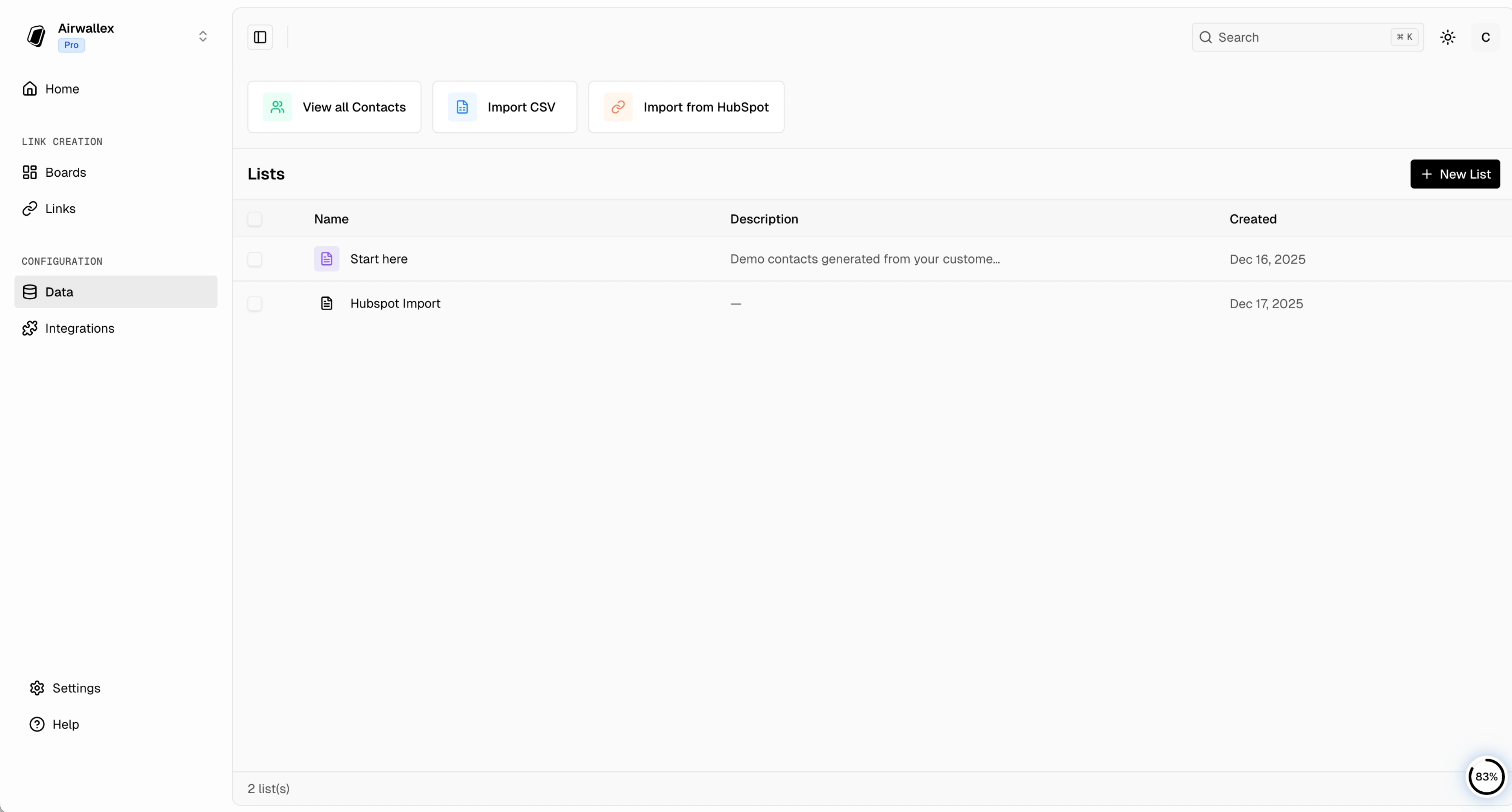 ## What Are Lists?
Lists are collections of contacts grouped together for a specific purpose:
* **Campaign targets** – Contacts for a specific outreach campaign
* **Customer segments** – Enterprise vs SMB, by industry, by region
* **Lead stages** – New leads, qualified, nurturing
* **Event attendees** – Conference contacts, webinar signups
## Creating a List
Click **Lists** in the sidebar
Click **Create List**
* **Name** – Give your list a descriptive name (e.g., "Q1 Enterprise Outreach")
* **Description** – Optional context for your team
## What Are Lists?
Lists are collections of contacts grouped together for a specific purpose:
* **Campaign targets** – Contacts for a specific outreach campaign
* **Customer segments** – Enterprise vs SMB, by industry, by region
* **Lead stages** – New leads, qualified, nurturing
* **Event attendees** – Conference contacts, webinar signups
## Creating a List
Click **Lists** in the sidebar
Click **Create List**
* **Name** – Give your list a descriptive name (e.g., "Q1 Enterprise Outreach")
* **Description** – Optional context for your team
 ## Adding Contacts to Lists
### From the Contacts Page
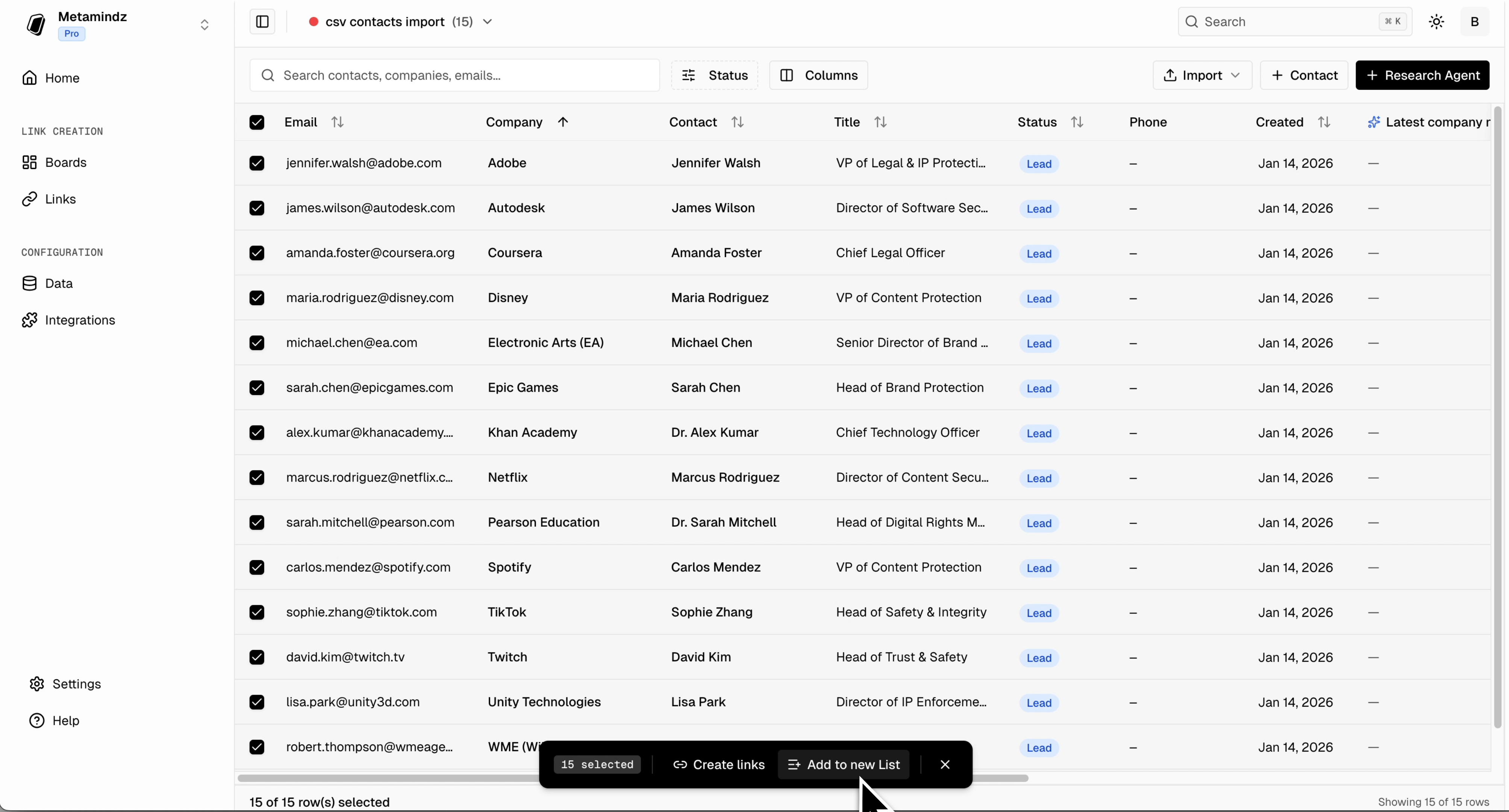
1. Select contacts using checkboxes
2. Click **Add to List** from the actions menu
3. Choose your target list
4. Confirm
### During Import
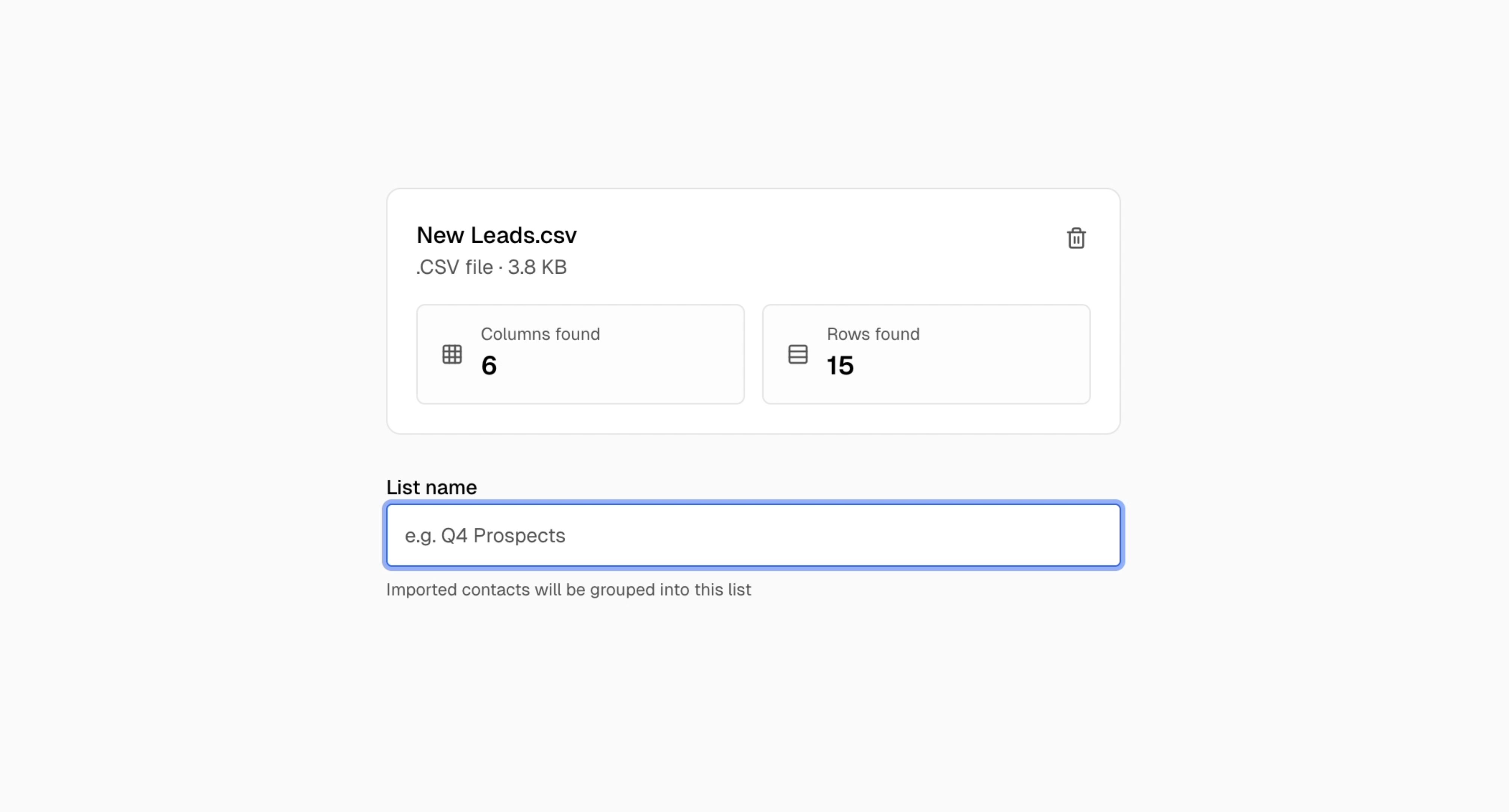
When importing contacts via CSV, you can assign them to a list:
1. Upload your CSV
2. Map your columns
3. Select or create a list for the imported contacts
4. Complete the import
## Adding Contacts to Lists
### From the Contacts Page
1. Select contacts using checkboxes
2. Click **Add to List** from the actions menu
3. Choose your target list
4. Confirm
### During Import
When importing contacts via CSV, you can assign them to a list:
1. Upload your CSV
2. Map your columns
3. Select or create a list for the imported contacts
4. Complete the import
 ### From a Contact
1. Open a contact's detail view
2. Find the Lists section
3. Click **Add to List**
4. Select the list(s)
## Managing Lists
### Viewing List Members
Click any list to see all contacts in that list. You can:
* Search within the list
* Sort by any column
* Filter by fields
### Removing Contacts
1. Open the list
2. Select contacts to remove
3. Click **Remove from List**
Removing from a list doesn't delete the contact from Pockla—it just removes them from that list.
### Bulk Actions
From within a list view, you can perform bulk actions on all or selected contacts:
| Action | Description |
| ------------------- | --------------------------------------------- |
| **Export** | Download list as CSV |
| **Add to Board** | Add contacts to a board |
| **Create Link Set** | Generate personalized pages for list contacts |
| **Delete** | Remove contacts from Pockla entirely |
## Using Lists
### For Link Sets
Lists are the primary way to select contacts for personalized pages:
1. Create a Link Set
2. Choose "From a List"
3. Select your list
4. All contacts in the list get personalized pages
See [Running for Contacts](/links/running-for-contacts) for details.
### With Boards
Add entire lists to boards for pipeline management:
1. Open a board
2. Click **Add Contacts**
3. Select a list
4. Contacts appear in the board's first stage
### For Campaigns
Organize your outreach by creating lists per campaign:
* "Spring 2024 Enterprise Campaign"
* "Webinar Follow-ups - March"
* "Trade Show Leads - CES"
## Best Practices
Include the purpose, date, or segment in the name. "Q1 Enterprise Outreach" is better than "List 1".
Smaller, targeted lists perform better than large generic ones. Create separate lists for different campaigns or segments.
Archive or delete lists after campaigns end to keep your workspace organized.
## Next Steps
Visualize contacts in a pipeline
Create personalized pages for a list
### From a Contact
1. Open a contact's detail view
2. Find the Lists section
3. Click **Add to List**
4. Select the list(s)
## Managing Lists
### Viewing List Members
Click any list to see all contacts in that list. You can:
* Search within the list
* Sort by any column
* Filter by fields
### Removing Contacts
1. Open the list
2. Select contacts to remove
3. Click **Remove from List**
Removing from a list doesn't delete the contact from Pockla—it just removes them from that list.
### Bulk Actions
From within a list view, you can perform bulk actions on all or selected contacts:
| Action | Description |
| ------------------- | --------------------------------------------- |
| **Export** | Download list as CSV |
| **Add to Board** | Add contacts to a board |
| **Create Link Set** | Generate personalized pages for list contacts |
| **Delete** | Remove contacts from Pockla entirely |
## Using Lists
### For Link Sets
Lists are the primary way to select contacts for personalized pages:
1. Create a Link Set
2. Choose "From a List"
3. Select your list
4. All contacts in the list get personalized pages
See [Running for Contacts](/links/running-for-contacts) for details.
### With Boards
Add entire lists to boards for pipeline management:
1. Open a board
2. Click **Add Contacts**
3. Select a list
4. Contacts appear in the board's first stage
### For Campaigns
Organize your outreach by creating lists per campaign:
* "Spring 2024 Enterprise Campaign"
* "Webinar Follow-ups - March"
* "Trade Show Leads - CES"
## Best Practices
Include the purpose, date, or segment in the name. "Q1 Enterprise Outreach" is better than "List 1".
Smaller, targeted lists perform better than large generic ones. Create separate lists for different campaigns or segments.
Archive or delete lists after campaigns end to keep your workspace organized.
## Next Steps
Visualize contacts in a pipeline
Create personalized pages for a list