> ## Documentation Index
> Fetch the complete documentation index at: https://docs.pockla.io/llms.txt
> Use this file to discover all available pages before exploring further.
# Getting Set Up
> Create your account and let Pockla learn about your business
This guide walks you through setting up your Pockla account. The onboarding process uses AI to understand your business, so Pockla can help you create personalized outreach from day one.
## Prerequisites
* Modern web browser (Chrome, Firefox, Safari, Edge)
* Your company website URL
## The Onboarding Flow
When you sign up, Pockla guides you through a 4-step wizard that analyzes your company and sets up your account.
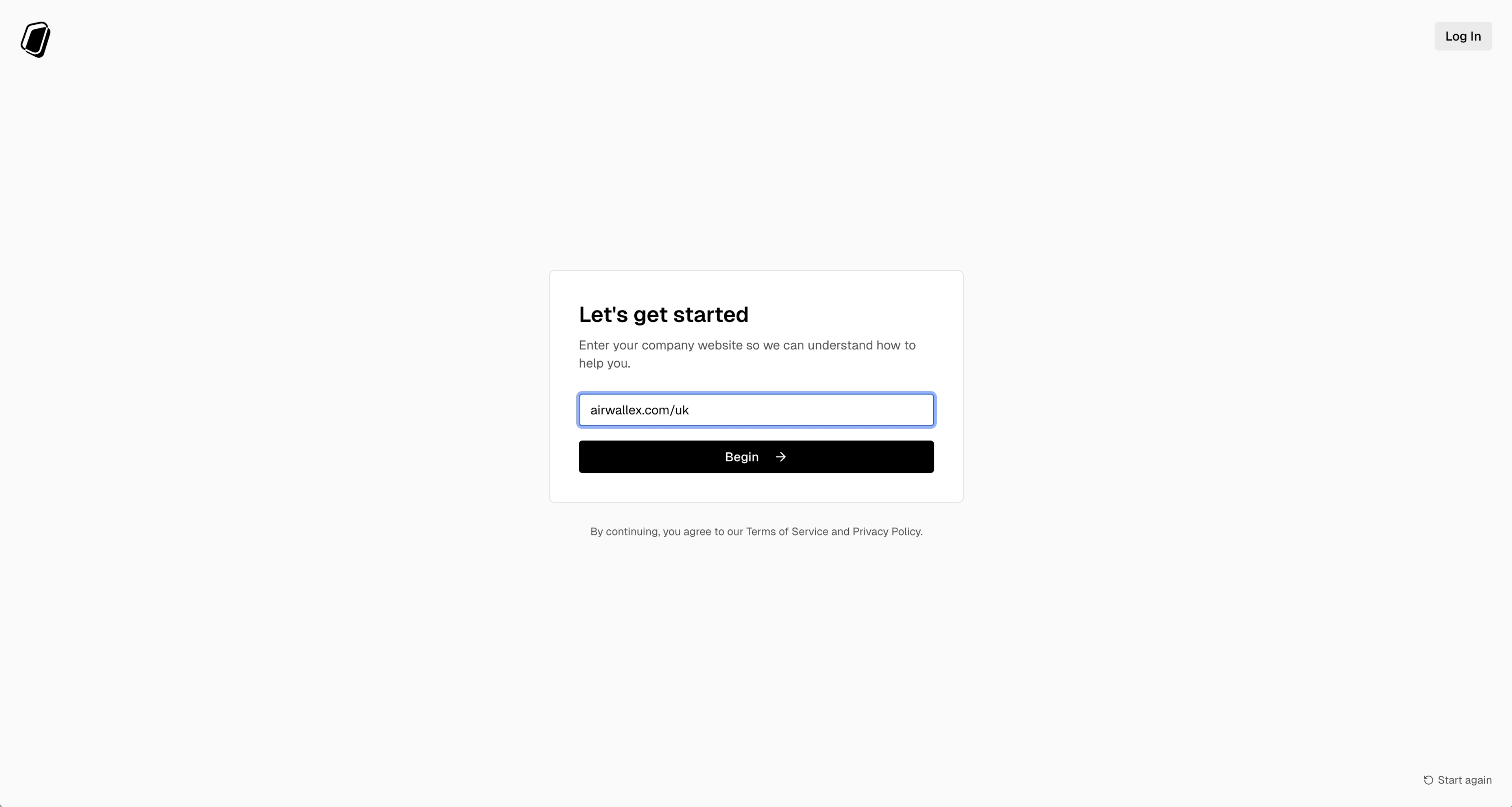
Navigate to [app.pockla.io](https://app.pockla.io) and enter your company website URL.
Pockla will:
* Connect to your website
* Read your homepage content
* Analyze your company profile
* Generate suggested objectives
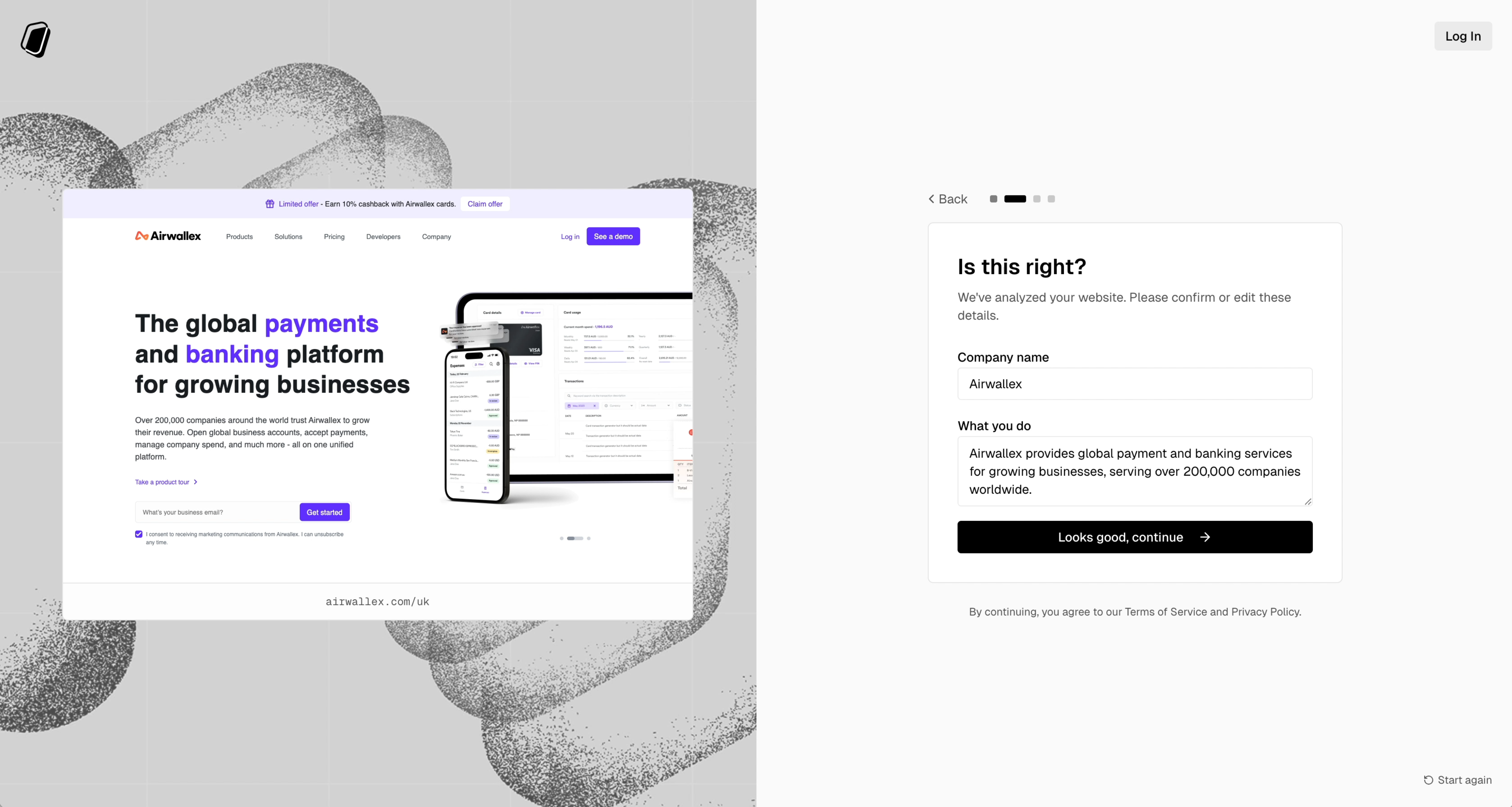
 Review the AI-generated company name and description. You can edit these if they're not quite right.
This information helps Pockla understand what you do and who your customers are.
Review the AI-generated company name and description. You can edit these if they're not quite right.
This information helps Pockla understand what you do and who your customers are.
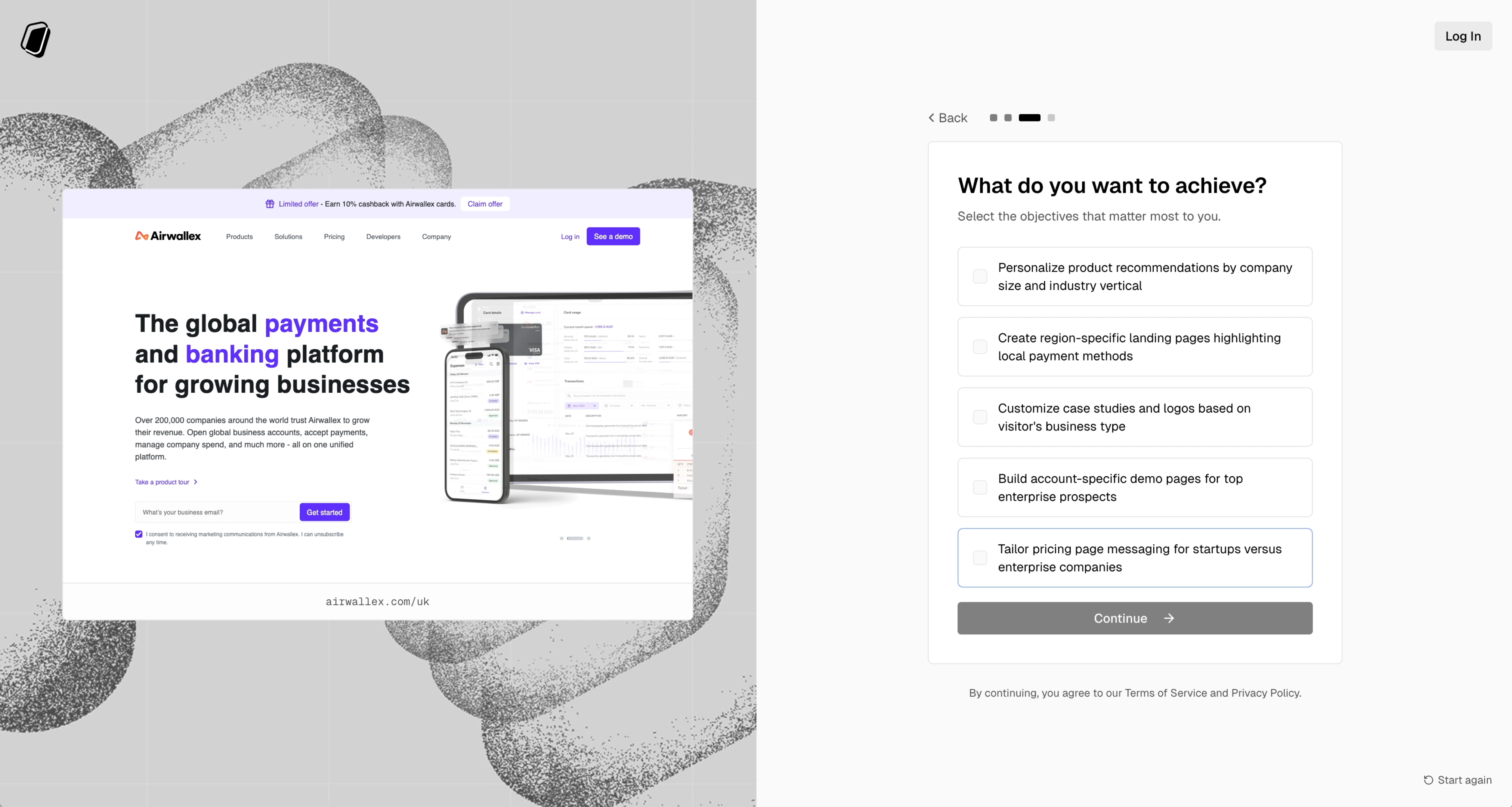
 Choose the objectives that matter most to you from the AI-suggested list. These might include:
* Generate more qualified leads
* Improve outreach response rates
* Build stronger customer relationships
* Scale personalized engagement
Your selections help Pockla prioritize features and suggestions for your use case.
Choose the objectives that matter most to you from the AI-suggested list. These might include:
* Generate more qualified leads
* Improve outreach response rates
* Build stronger customer relationships
* Scale personalized engagement
Your selections help Pockla prioritize features and suggestions for your use case.
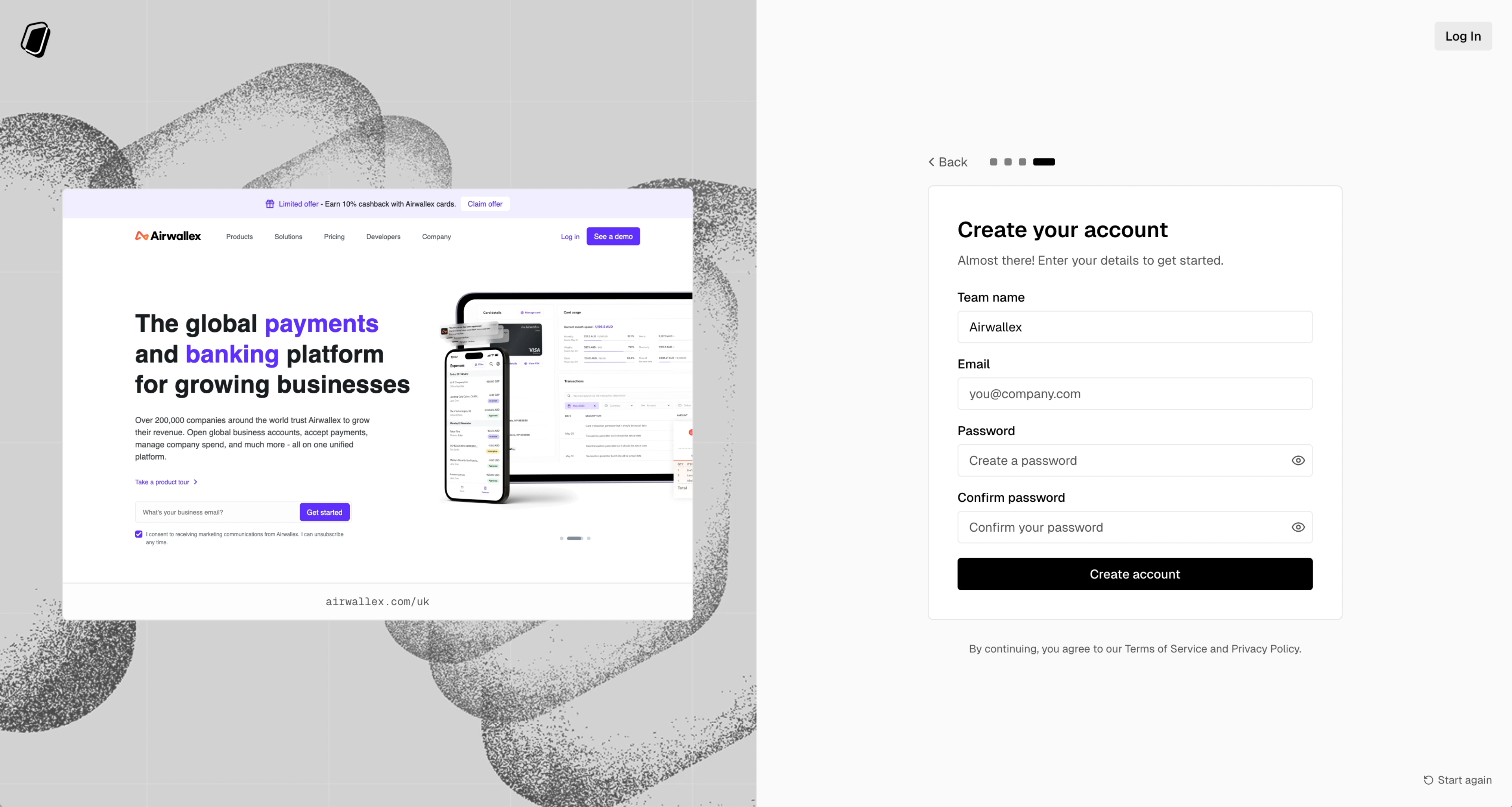
 Enter your details to create your account:
* **Team name** – Pre-filled with your company name (editable)
* **Email** – Your work email address
* **Password** – Must be 8+ characters with uppercase, lowercase, and a number
Once you submit, your account is created and you're redirected to your dashboard.
Enter your details to create your account:
* **Team name** – Pre-filled with your company name (editable)
* **Email** – Your work email address
* **Password** – Must be 8+ characters with uppercase, lowercase, and a number
Once you submit, your account is created and you're redirected to your dashboard.
 ## Account Setup (Post-Login)
After your account is created, Pockla runs a deeper analysis of your company in the background. You'll see an **Account Setup** card on your dashboard showing progress through 6 milestones:
Your account is ready
Deep dive into your web presence
Identifying your products & services
Researching your competitive landscape
Building your ideal customer profile
Creating sample contacts to explore
### What the Onboarding Agent Does
The onboarding agent is an AI that researches your company in depth. It:
1. **Searches the web** for information about your company
2. **Scrapes key pages** from your website
3. **Synthesizes a company profile** including:
* Company summary
* Products & services
* Target customers
* Competitors
4. **Crawls your sitemap** to build a page index for link creation
5. **Generates demo contacts** based on your ideal customer profile
This analysis powers features like personalized outreach suggestions and the Research Agent.
The analysis typically takes 1-2 minutes. You can navigate away and come back—it continues in the background.
### Viewing Your Company Profile
After setup completes, you can view and edit your company profile in **Settings → Company**.
The profile includes:
* Website URL
* Company name
* Short description
* Full analysis (summary, products, customers, competitors)
## Next Steps
Import contacts via CSV or add them manually
Get up and running in 5 minutes
## Account Setup (Post-Login)
After your account is created, Pockla runs a deeper analysis of your company in the background. You'll see an **Account Setup** card on your dashboard showing progress through 6 milestones:
Your account is ready
Deep dive into your web presence
Identifying your products & services
Researching your competitive landscape
Building your ideal customer profile
Creating sample contacts to explore
### What the Onboarding Agent Does
The onboarding agent is an AI that researches your company in depth. It:
1. **Searches the web** for information about your company
2. **Scrapes key pages** from your website
3. **Synthesizes a company profile** including:
* Company summary
* Products & services
* Target customers
* Competitors
4. **Crawls your sitemap** to build a page index for link creation
5. **Generates demo contacts** based on your ideal customer profile
This analysis powers features like personalized outreach suggestions and the Research Agent.
The analysis typically takes 1-2 minutes. You can navigate away and come back—it continues in the background.
### Viewing Your Company Profile
After setup completes, you can view and edit your company profile in **Settings → Company**.
The profile includes:
* Website URL
* Company name
* Short description
* Full analysis (summary, products, customers, competitors)
## Next Steps
Import contacts via CSV or add them manually
Get up and running in 5 minutes