> ## Documentation Index
> Fetch the complete documentation index at: https://docs.pockla.io/llms.txt
> Use this file to discover all available pages before exploring further.
# Links Overview
> Create personalized web pages for your contacts
Links in Pockla are personalized web pages—one for each contact. You select a page from your website, choose elements to personalize, and Pockla generates a unique version for every contact using AI.
## The Links Page
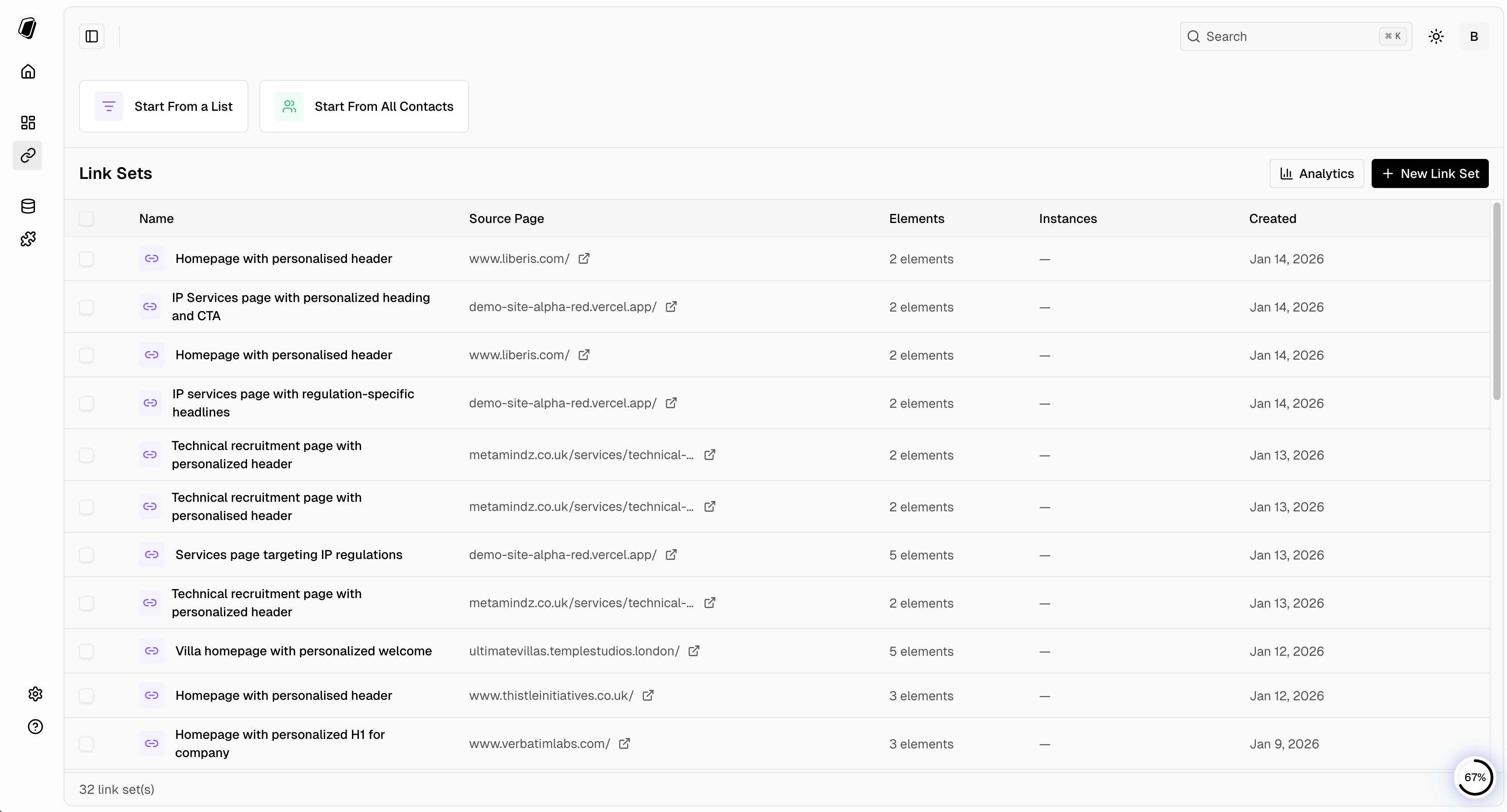
The Links page is your central hub for creating and managing personalized pages.
 ### Quick Actions
At the top of the page, you'll find two quick action buttons:
* **Start From a List** – Create a Link Set using contacts from an existing list
* **Start From All Contacts** – Create a Link Set using your entire contact database
### Link Sets Table
Below the quick actions, you'll see your Link Sets displayed in a table with the following columns:
| Column | Description |
| --------------- | ------------------------------------------------- |
| **Name** | The name/description of your Link Set |
| **Source Page** | The URL of the page being personalized |
| **Elements** | Number of elements configured for personalization |
| **Instances** | Number of generated pages for contacts |
| **Created** | Date the Link Set was created |
### Actions
* **Analytics** – View engagement metrics across all your Link Sets
* **+ New Link Set** – Create a new Link Set from scratch
## What is a Link Set?
A Link Set is your personalization template. It defines:
* Which page to personalize (the source URL)
* Which elements to customize (headlines, paragraphs, CTAs)
* How to personalize each element (AI prompts)
From one Link Set, you generate individual pages (called **instances**) for each contact.
## How It Works
1. **Choose a source page** – Any page on your website
2. **Select elements to personalize** – Headlines, paragraphs, CTAs, etc.
3. **Write prompts** – Tell the AI how to personalize each element
4. **Generate** – Pockla creates a unique page for each contact
5. **Publish** – Each contact gets their own URL
## What Gets Personalized
You can personalize any text element on your page:
| Element Type | Example Use |
| --------------------- | ---------------------------------------------- |
| **Headlines (H1-H3)** | Personalized welcome message with company name |
| **Paragraphs** | Tailored value propositions |
| **CTAs / Buttons** | Personalized call-to-action buttons |
| **List items** | Industry-specific benefits |
The AI uses contact data (name, company, job title) plus any enrichments you've added to generate relevant content.
## Creating a Link Set
Click **Start From a List** or **Start From All Contacts**, or use the **+ New Link Set** button.
Choose which contacts to generate pages for:
* **From a List** – Select an existing contact list
* **All Contacts** – Use your entire database
Paste the URL of the page you want to personalize.
Use the AI chat to describe what you want to personalize. Select elements on your page and write prompts for each.
Preview with a sample contact, then generate pages for all selected contacts.
Once generated, publish to make the URLs live. Each contact gets a unique URL (e.g., `pages.pockla.io/abc123`).
## Available Contact Data
Your prompts can reference any contact field:
| Variable | Description |
| --------- | -------------------- |
| firstName | Contact's first name |
| lastName | Contact's last name |
| email | Email address |
| company | Company name |
| jobTitle | Job title / role |
Plus any custom enrichments you've created (e.g., company\_summary, recent\_news).
## Link Set Statuses
Each generated page (instance) has a status:
| Status | Meaning |
| -------------- | ----------------------------------- |
| **Generating** | AI is creating personalized content |
| **Ready** | Generated but not yet published |
| **Published** | Live and accessible via URL |
| **Failed** | Generation error (check logs) |
## Viewing Link Set Details
Click on any Link Set in the table to view:
* All generated instances
* Status of each instance
* Individual preview for each contact
* Engagement analytics (after publishing)
## Next Steps
Learn more about generating pages for specific contacts
Automate page generation with HubSpot workflows
### Quick Actions
At the top of the page, you'll find two quick action buttons:
* **Start From a List** – Create a Link Set using contacts from an existing list
* **Start From All Contacts** – Create a Link Set using your entire contact database
### Link Sets Table
Below the quick actions, you'll see your Link Sets displayed in a table with the following columns:
| Column | Description |
| --------------- | ------------------------------------------------- |
| **Name** | The name/description of your Link Set |
| **Source Page** | The URL of the page being personalized |
| **Elements** | Number of elements configured for personalization |
| **Instances** | Number of generated pages for contacts |
| **Created** | Date the Link Set was created |
### Actions
* **Analytics** – View engagement metrics across all your Link Sets
* **+ New Link Set** – Create a new Link Set from scratch
## What is a Link Set?
A Link Set is your personalization template. It defines:
* Which page to personalize (the source URL)
* Which elements to customize (headlines, paragraphs, CTAs)
* How to personalize each element (AI prompts)
From one Link Set, you generate individual pages (called **instances**) for each contact.
## How It Works
1. **Choose a source page** – Any page on your website
2. **Select elements to personalize** – Headlines, paragraphs, CTAs, etc.
3. **Write prompts** – Tell the AI how to personalize each element
4. **Generate** – Pockla creates a unique page for each contact
5. **Publish** – Each contact gets their own URL
## What Gets Personalized
You can personalize any text element on your page:
| Element Type | Example Use |
| --------------------- | ---------------------------------------------- |
| **Headlines (H1-H3)** | Personalized welcome message with company name |
| **Paragraphs** | Tailored value propositions |
| **CTAs / Buttons** | Personalized call-to-action buttons |
| **List items** | Industry-specific benefits |
The AI uses contact data (name, company, job title) plus any enrichments you've added to generate relevant content.
## Creating a Link Set
Click **Start From a List** or **Start From All Contacts**, or use the **+ New Link Set** button.
Choose which contacts to generate pages for:
* **From a List** – Select an existing contact list
* **All Contacts** – Use your entire database
Paste the URL of the page you want to personalize.
Use the AI chat to describe what you want to personalize. Select elements on your page and write prompts for each.
Preview with a sample contact, then generate pages for all selected contacts.
Once generated, publish to make the URLs live. Each contact gets a unique URL (e.g., `pages.pockla.io/abc123`).
## Available Contact Data
Your prompts can reference any contact field:
| Variable | Description |
| --------- | -------------------- |
| firstName | Contact's first name |
| lastName | Contact's last name |
| email | Email address |
| company | Company name |
| jobTitle | Job title / role |
Plus any custom enrichments you've created (e.g., company\_summary, recent\_news).
## Link Set Statuses
Each generated page (instance) has a status:
| Status | Meaning |
| -------------- | ----------------------------------- |
| **Generating** | AI is creating personalized content |
| **Ready** | Generated but not yet published |
| **Published** | Live and accessible via URL |
| **Failed** | Generation error (check logs) |
## Viewing Link Set Details
Click on any Link Set in the table to view:
* All generated instances
* Status of each instance
* Individual preview for each contact
* Engagement analytics (after publishing)
## Next Steps
Learn more about generating pages for specific contacts
Automate page generation with HubSpot workflows