> ## Documentation Index
> Fetch the complete documentation index at: https://docs.pockla.io/llms.txt
> Use this file to discover all available pages before exploring further.
# Running for Contacts
> Generate personalized pages for a specific set of contacts
When you have a defined list of contacts—an outreach campaign, event follow-ups, or account-based marketing list—you run links "for contacts." Pockla generates a personalized page for each contact in one operation.
## When to Use This
* **Campaign outreach** – Email campaigns where each recipient gets a unique landing page
* **Event follow-ups** – Personalized pages for conference attendees
* **ABM lists** – Account-based marketing with tailored content per company
* **Sales sequences** – Personal pages for prospects in your pipeline
## The Process
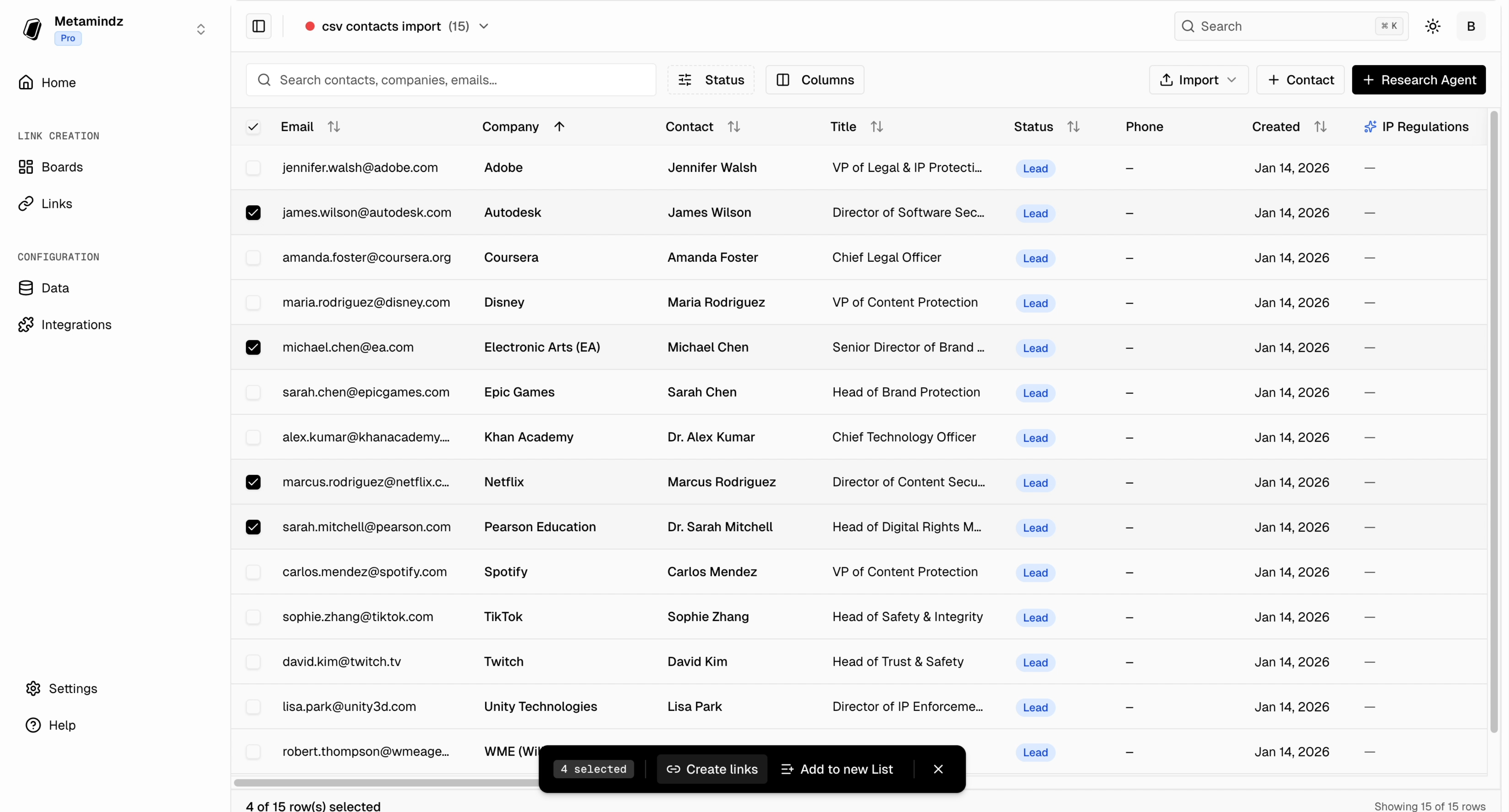
Choose contacts from your Pockla database:
* **From a List** – Select an existing list (e.g., "Q1 Enterprise Prospects")
* **Select Contacts** – Pick individual contacts from your contacts table
You can select anywhere from 1 to thousands of contacts.
 Enter the URL of the page to personalize and use the AI chat to configure elements and prompts.
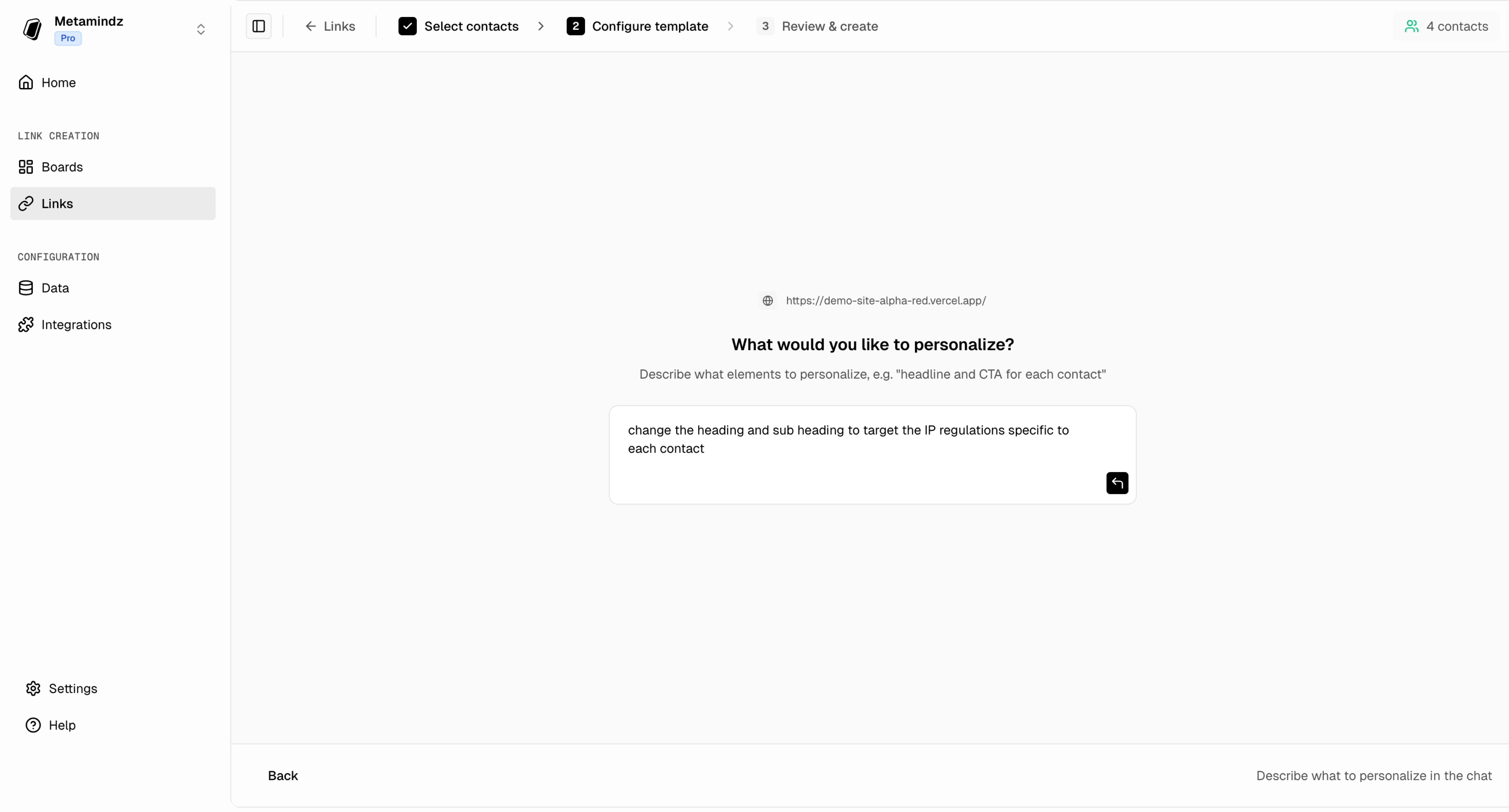 See [Links Overview](/links/introduction) for detailed configuration steps.
Before generating for everyone, preview with one contact. Click **Run Example** to see exactly what the AI produces.
See [Links Overview](/links/introduction) for detailed configuration steps.
Before generating for everyone, preview with one contact. Click **Run Example** to see exactly what the AI produces.
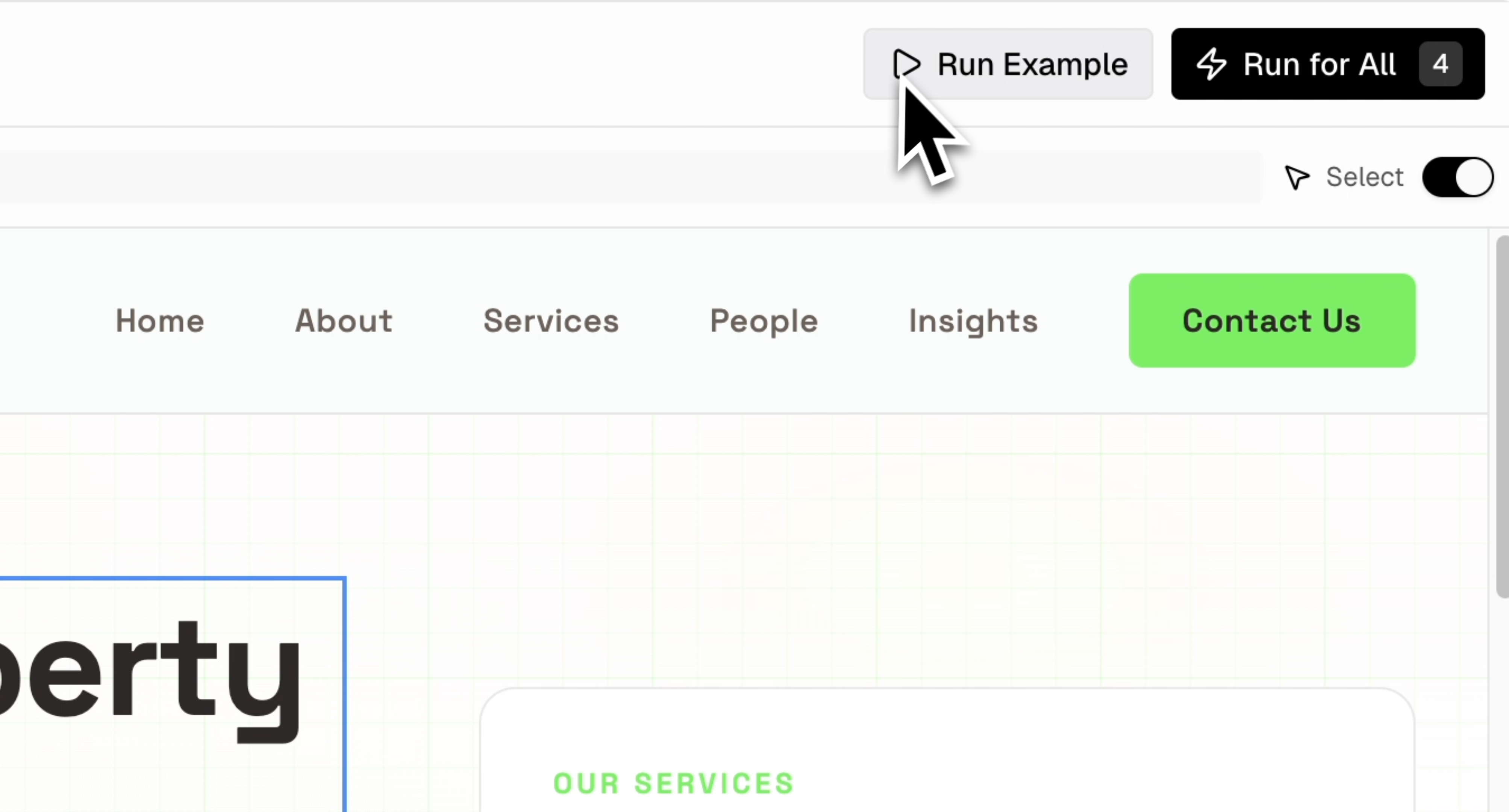 Try a few different contacts to make sure your prompts work well across various companies and roles.
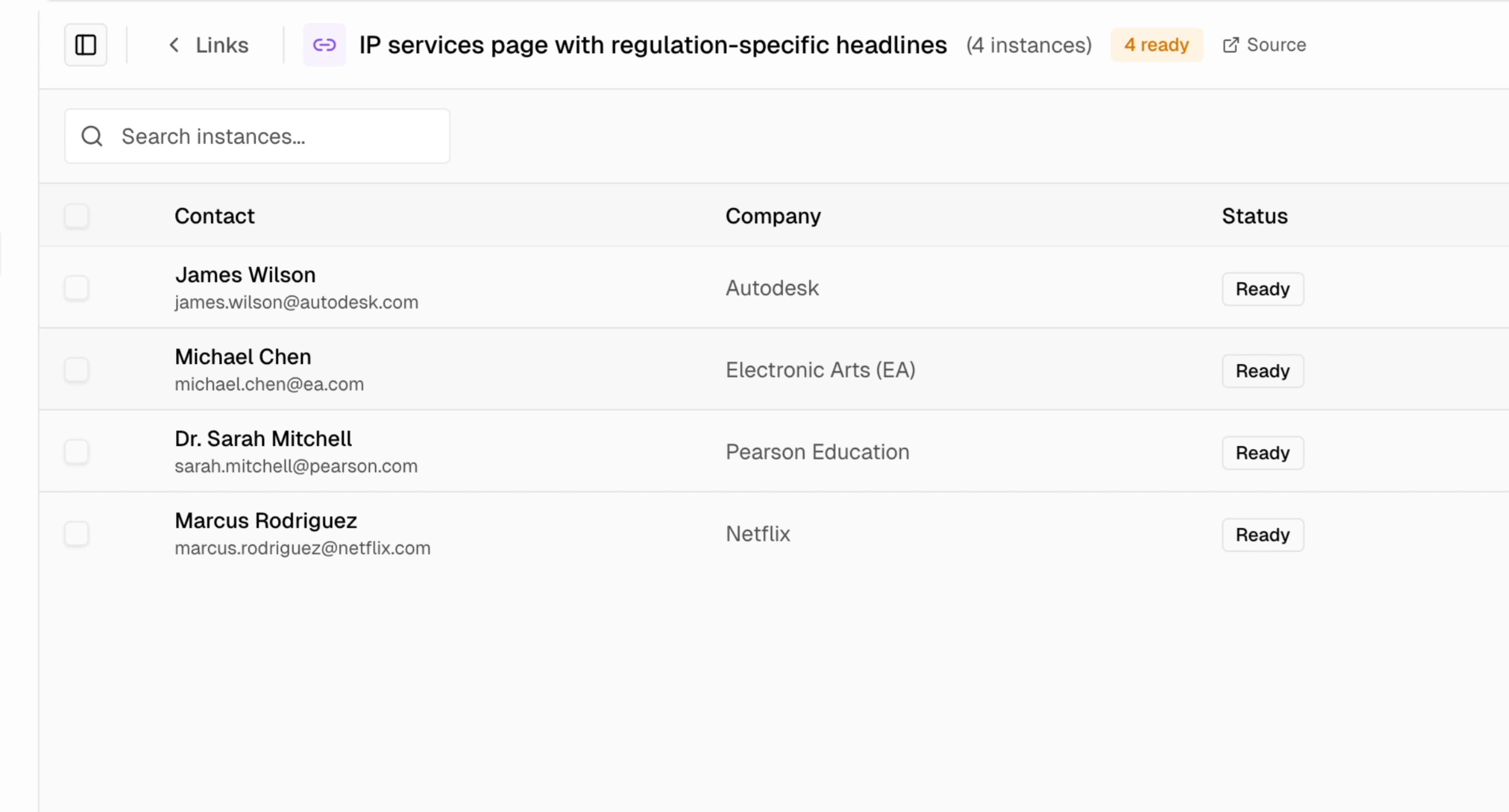
Click **Generate** to create pages for all selected contacts. You'll be taken to the instances view where you can watch progress.
Try a few different contacts to make sure your prompts work well across various companies and roles.
Click **Generate** to create pages for all selected contacts. You'll be taken to the instances view where you can watch progress.
 ## What Happens During Generation
When you run generation:
1. **Link Set is created** – Your configuration (page, elements, prompts) is saved
2. **Instances are queued** – One instance per contact, all starting in "generating" status
3. **Background processing** – Each contact is processed sequentially:
* Contact data is loaded (including any enrichments)
* AI generates personalized content for each element
* Generated HTML is saved
4. **Progress updates** – The instances table updates in real-time as each completes
5. **Ready for publish** – Once all are generated, you can publish
Generation happens in the background. You can navigate away and come back—it continues running. Check the progress bar or instances table to see status.
## Generation Time
Time depends on:
* Number of contacts
* Number of elements being personalized
* AI response time
**Rough estimates:**
* 10 contacts, 3 elements: \~1-2 minutes
* 100 contacts, 5 elements: \~10-15 minutes
* 500 contacts: \~45-60 minutes
## Using Enrichments
If you've added enrichments to your contacts (via the Enrichment feature), they're available in your prompts.
**Example:** If you have a "Company Summary" enrichment:
```
Write a paragraph explaining how our product solves challenges
for companies like {{company}}.
Use this context about them:
{{company_summary}}
```
Enrichments are loaded per-contact during generation, so each page uses that specific contact's enriched data.
## After Generation
Once generation completes:
1. **Review instances** – Check for any failures
2. **Preview pages** – Click any instance to see the generated page
3. **Publish** – Make URLs live so you can share them
4. **Export URLs** – Get a list of all personalized URLs for your outreach tool
## What Happens During Generation
When you run generation:
1. **Link Set is created** – Your configuration (page, elements, prompts) is saved
2. **Instances are queued** – One instance per contact, all starting in "generating" status
3. **Background processing** – Each contact is processed sequentially:
* Contact data is loaded (including any enrichments)
* AI generates personalized content for each element
* Generated HTML is saved
4. **Progress updates** – The instances table updates in real-time as each completes
5. **Ready for publish** – Once all are generated, you can publish
Generation happens in the background. You can navigate away and come back—it continues running. Check the progress bar or instances table to see status.
## Generation Time
Time depends on:
* Number of contacts
* Number of elements being personalized
* AI response time
**Rough estimates:**
* 10 contacts, 3 elements: \~1-2 minutes
* 100 contacts, 5 elements: \~10-15 minutes
* 500 contacts: \~45-60 minutes
## Using Enrichments
If you've added enrichments to your contacts (via the Enrichment feature), they're available in your prompts.
**Example:** If you have a "Company Summary" enrichment:
```
Write a paragraph explaining how our product solves challenges
for companies like {{company}}.
Use this context about them:
{{company_summary}}
```
Enrichments are loaded per-contact during generation, so each page uses that specific contact's enriched data.
## After Generation
Once generation completes:
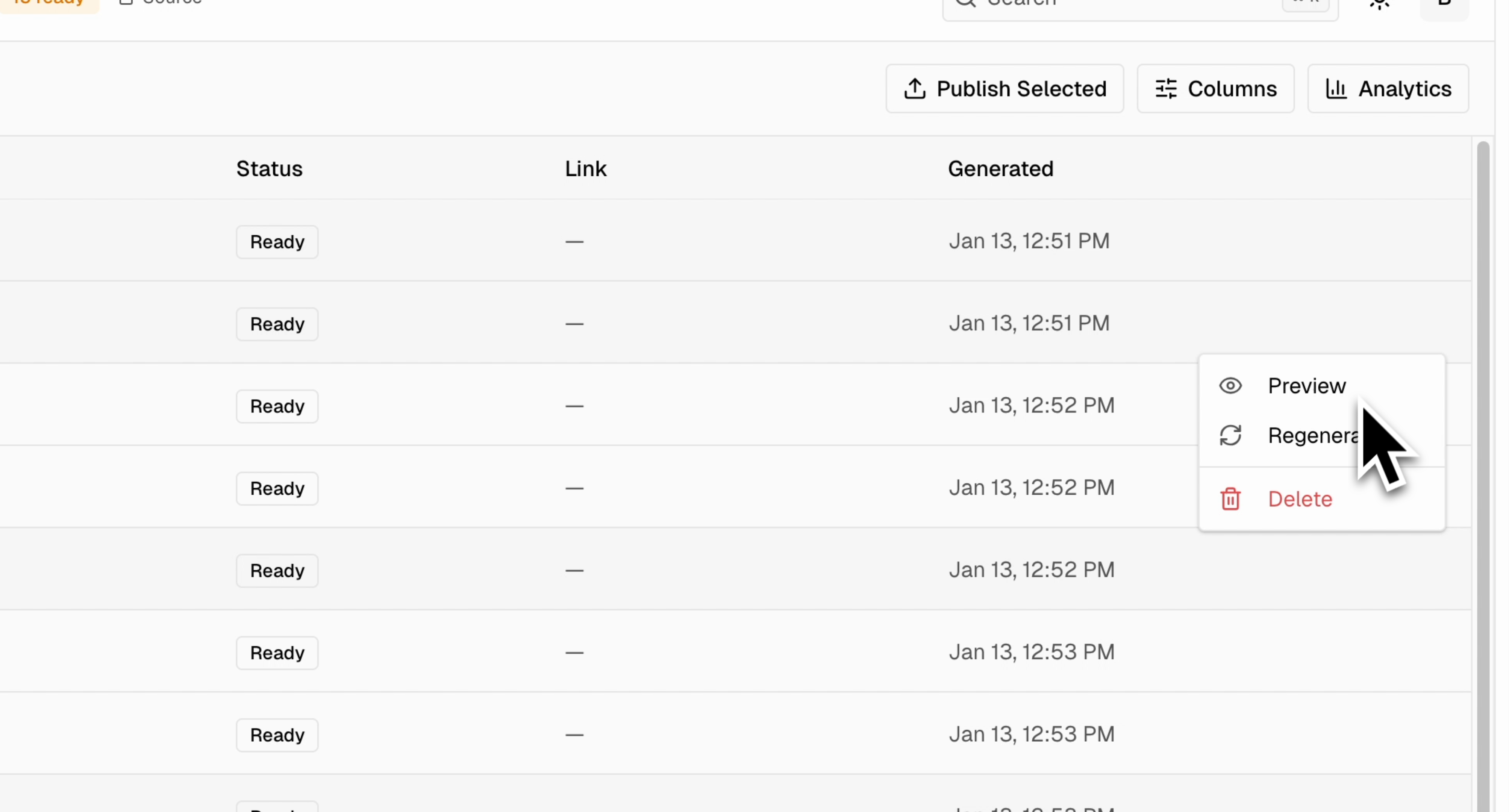
1. **Review instances** – Check for any failures
2. **Preview pages** – Click any instance to see the generated page
3. **Publish** – Make URLs live so you can share them
4. **Export URLs** – Get a list of all personalized URLs for your outreach tool
 ## Handling Failures
If some contacts fail to generate:
| Issue | Solution |
| ------------------ | ---------------------------------------------------- |
| Missing data | Ensure contacts have required fields (company, name) |
| Enrichment missing | Run enrichments before generating |
| AI error | Retry failed instances individually |
Failed instances show an error message. You can retry them without regenerating successful ones.
## Publishing
Generated pages aren't live until you publish:
1. Go to your Link Set's instances view
2. Select instances to publish (or "Select All")
3. Click **Publish**
4. Each contact gets a unique URL (e.g., `pages.pockla.io/abc123`)
Published URLs are immediately accessible. Share them in emails, LinkedIn messages, or any outreach channel.
## Tracking Engagement
After publishing, you can see:
* **Views** – When someone visits their page
* **Time on page** – How long they engaged
* **Clicks** – What they clicked on
This data flows back to the contact record and (if connected) to HubSpot.
## Best Practices
Test with 5-10 contacts first. Review the generated content to refine your prompts before scaling up.
AI-generated pages are only as good as the data. Run enrichments first to give the AI more context about each contact's company.
Vague prompts produce generic content. Be specific about tone, length, and what information to include.
**Good:** "Write a 2-sentence headline welcoming the contact by first name and mentioning a specific challenge their industry faces with data integration."
**Too vague:** "Write a welcome message."
Test with contacts from different industries, company sizes, and roles to ensure your prompts work across your audience.
## Next Steps
Automate page generation with HubSpot
Add more context for better personalization
## Handling Failures
If some contacts fail to generate:
| Issue | Solution |
| ------------------ | ---------------------------------------------------- |
| Missing data | Ensure contacts have required fields (company, name) |
| Enrichment missing | Run enrichments before generating |
| AI error | Retry failed instances individually |
Failed instances show an error message. You can retry them without regenerating successful ones.
## Publishing
Generated pages aren't live until you publish:
1. Go to your Link Set's instances view
2. Select instances to publish (or "Select All")
3. Click **Publish**
4. Each contact gets a unique URL (e.g., `pages.pockla.io/abc123`)
Published URLs are immediately accessible. Share them in emails, LinkedIn messages, or any outreach channel.
## Tracking Engagement
After publishing, you can see:
* **Views** – When someone visits their page
* **Time on page** – How long they engaged
* **Clicks** – What they clicked on
This data flows back to the contact record and (if connected) to HubSpot.
## Best Practices
Test with 5-10 contacts first. Review the generated content to refine your prompts before scaling up.
AI-generated pages are only as good as the data. Run enrichments first to give the AI more context about each contact's company.
Vague prompts produce generic content. Be specific about tone, length, and what information to include.
**Good:** "Write a 2-sentence headline welcoming the contact by first name and mentioning a specific challenge their industry faces with data integration."
**Too vague:** "Write a welcome message."
Test with contacts from different industries, company sizes, and roles to ensure your prompts work across your audience.
## Next Steps
Automate page generation with HubSpot
Add more context for better personalization